---
title: "Admin: Download Organizations"
slug: "administrator-help-download-organizations"
updated: 2024-06-19T14:14:49Z
published: 2024-06-18T15:09:26Z
canonical: "support.nvoq.com/administrator-help-download-organizations"
---
> ## Documentation Index
> Fetch the complete documentation index at: https://support.nvoq.com/llms.txt
> Use this file to discover all available pages before exploring further.
# Admin: Download Organizations
Download existing organizations that you want to copy to another system, tenant, or organization.
The columns downloaded do not match the columns that display in the list view.You can change the columns that display in the list view using the customize columns feature but the file that downloads on this page will include special columns needed for uploading organizations, regardless of what displays in the list view.
If you want to UPLOAD several organizations along with their properties (other than dictation topic), download the organization levels one at a time so that the properties will be included in your downloaded file. (TIP: Companies have no properties, and division properties are not applicable if your organization signs in with SSO accounts, so you may just need group properties.)
1. Go to the **Organizations page** in nVoq Administrator.
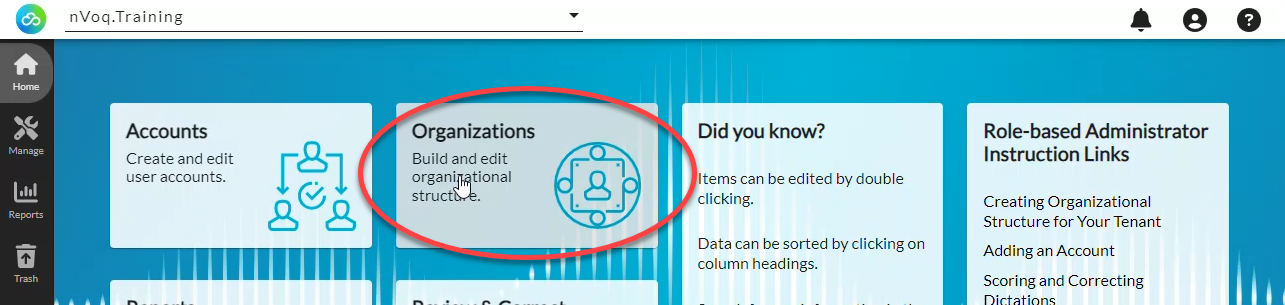
2. Click on the **parent organization** of the one that you want to download in the organization list. For example, if you want to download companies, click on the tenant. If you want to download groups, click on the division.

3. Select the organization level that you want to download from the **View Organization Level menu**. For example, if you want to download companies, make sure "company" is selected on this menu. If you want to download groups, make sure "group" is selected.

4. In the list view **select the organization(s)** that you want to download.

5. Click the **Download Organizations icon** in the blue toolbar.

6. In the Download dialog box that opens, **select the radio button** for the organizations that you want to download.

- **All organizations listed -** This will download a file that includes all of the organizations in the list view. The file will include properties that are configured for the organizations at the level your are viewing.
- **All organizations listed and children -** This will download a file that includes all of the organizations in the list view and their child organizations.
- **Selected organizations -** This will download a file of only the selected organization(s). The file will include properties that are configured for the organizations at the level you are viewing.
- **Selected organizations and children -** This will download a file of the selected organization(s) and all of their child organizations.
7. Click the **Download button**.

8. A CSV (organizations.csv) file is downloaded in the browser.

9. The downloaded includes the following columns:

- **Don't change any of these headers!** - This is just information letting you know not to remove or change any of the column names in the top row.
- **Unique index (use any number) -** Numbers assigned to each organization
- **Name -** The name of the organization
- **Level -** The level of the organization (company, division, or group)
- **Parent index (point to unique index) -** The number (from the Unique Index column) assigned to the organization that should be the parent of this organization. If you downloaded only one organization level this field will be blank.
- **Enabled -** This lists whether or not the organization is enabled (yes or no).
- **Properties (optional) -**What is listed here depends on the organizations that were downloaded.
- If you downloaded one organization level at a time (by selecting "All organizations listed" or "Selected organizations," you will see the properties configured for the organizations at that level.
- If you downloaded "All organizations listed and children" or "Selected organizations and children," you will only see the Topic configured for the groups here.
10. Make any necessary changes to the file before you upload it, such as changing organizations names or properties. For information about how to use the columns in the file, see [Upload Organizations: How to Use the Organization Template](https://support.nvoq.com/docs/administrator-help-upload-organizations#how-to-use-the-organization-template)
11. Next, [**upload your file**](/v1/docs/administrator-help-upload-organizations)!
Single Sign-On (SSO) is an authentication method that allows users to sign in to multiple applications and websites with one username and password. nVoq products may be configured to authenticate using Microsoft Entra ID (formerly Microsoft Azure Active Directory) or Okta.
A modifier key is a key that is pressed at the same time as a hotkey to elicit an action. For example, if you want users to have to press two keys to record dictation, such as the Ctrl key with the F9 key, you would make the Dictation Hotkey "F9" and the modifier key would be "Ctrl". The following key combinations are not allowed because they are already assigned to functions in Windows: Ctrl A, Ctrl C, Ctrl F, Ctrl S, Ctrl V, Ctrl X, Ctrl Y, and Ctrl Z.
Single Sign-On (SSO) lets users access multiple applications with one username and password. nVoq supports SSO with Microsoft Entra ID (formerly Azure AD) or Okta.