On the Organizations page at the Division level you can create and edit division organizations and configure nVoq password security settings for client-only accounts below this division. (Accounts with an Administrator Role apply to non-configurable settings.) You can also view and restore division organization properties.
Add or Edit a Division
- Go to the Organizations page in nVoq Administrator.
- Optionally, click the Manage icon in the sidebar to hide the sidebar while you work.

- Optionally, click the Manage icon in the sidebar to hide the sidebar while you work.
- Use the Organization menu on the left side of the page to select the company level organization that is the parent of the division you are adding or editing.
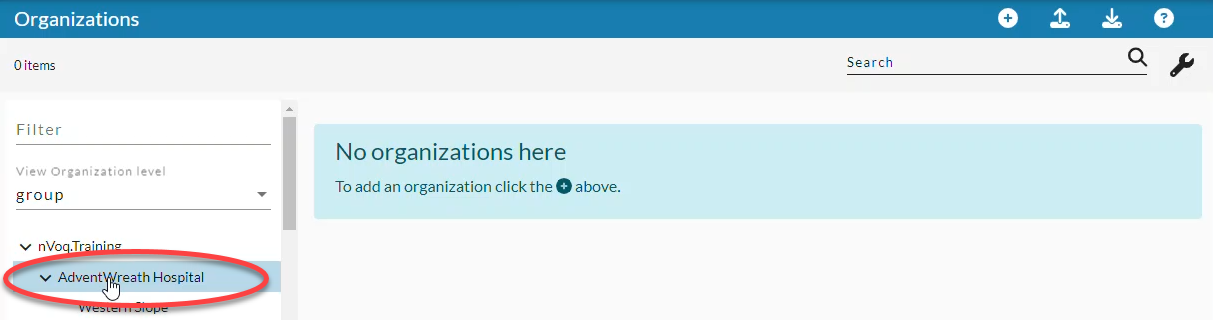
- Navigate this menu by clicking the > arrow next to each organization level to open it, or by typing an organization name in the Filter text field.
- Navigate this menu by clicking the > arrow next to each organization level to open it, or by typing an organization name in the Filter text field.
- Open the View Organization Level menu and select the organization level of division.
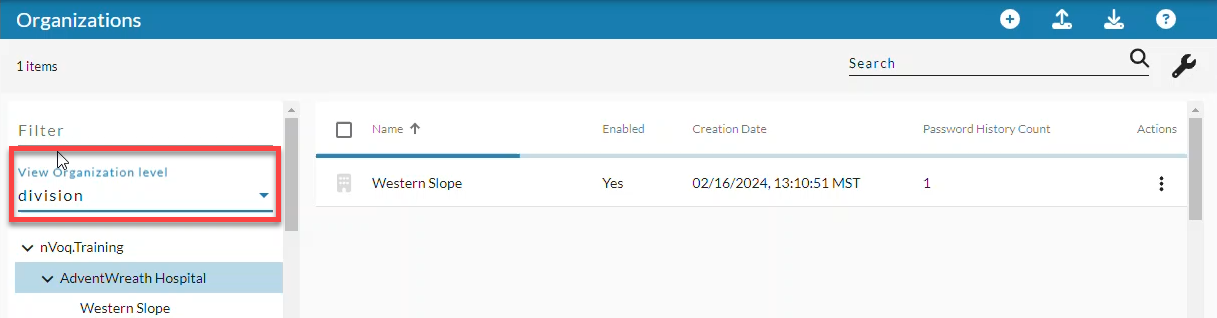
- To add a new division click the new icon in the blue bar, -OR- find the division that you need to edit in the list view and then click Edit Organization.

- To find a division you can use the Search field at the top right of the page to search for text in any of the columns. Enter all or part of a word or name.
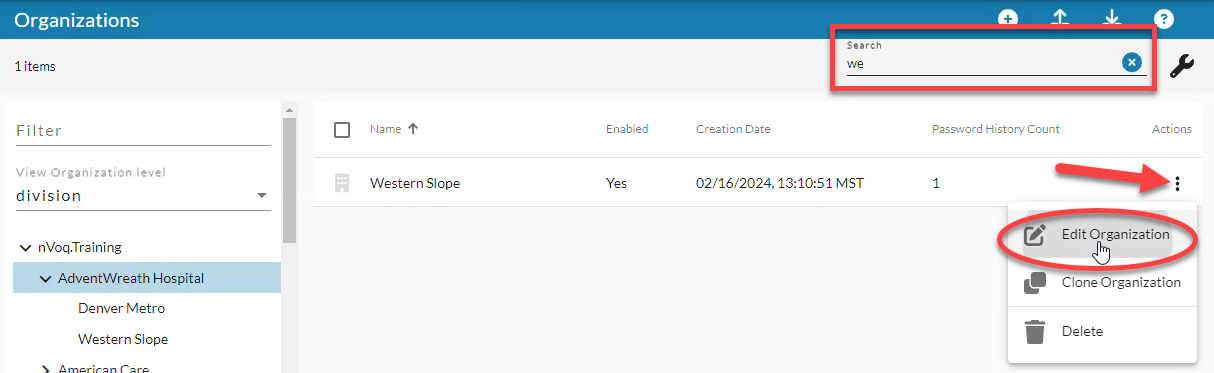
- To find a division you can use the Search field at the top right of the page to search for text in any of the columns. Enter all or part of a word or name.
- Enter or edit the division Name.

- Field length is 100 characters maximum.
- The following characters are NOT allowed: < > or non-English characters.
- If you change the name of a division that is used for auto provisioned accounts through Okta, Okta will display a 400 error with the reason "Unable to find match for [prior division name]". Your Okta administrator will need to change the name of the division in Okta.

BEST PRACTICE: Create a branch of the organization (Company, Division, and Group) for non-billable accounts assigned to individuals who support your end-users and manage items such as shortcuts, Note Compose designs, or Note Assist reviews. This allows administrators to test their work on those features in a dictation client. Name the organizations with ADMIN in the name and include only non-billable accounts in it. This helps nVoq recognize these accounts as non-billable and also makes it easier for you to exclude non-billable accounts from adoption reports.
- Optionally, slide the Enabled toggle off (white) if you want to create an organization in which users cannot yet log in to nVoq applications.

- If the Enabled toggle is off, accounts within the organization cannot log in to any nVoq application.
- If a company organization is disabled, all the divisions below it are also disabled and have an Enabled toggle that cannot be modified on the Edit Organization page or by using the mass update feature.
- If a division organization is disabled all the groups organizations below it are also disabled and have an Enabled toggle that cannot be modified on the Edit Organization page or by using the mass update feature.
- If you disable an organization while you're configuring organizations and accounts, don't forget to re-enable the organization when you're ready for users to log in!
- Enabled accounts in enabled organizations have active billing subscriptions.
- Configure the settings under Password Policy for client-only users under this division.
- The default settings for the division are configured when the tenant organization is initially created.
- Password settings at the division level apply ONLY to client-only nVoq accounts below this division that sign in using an nVoq account.
- Password policy settings do not apply to Microsoft or Okta SSO accounts.
- Accounts with an Administrator Role of any kind will automatically adhere to Password Security Settings for Accounts with an Administrator Role.
- Client-only accounts under the division honor password policies as they are configured at the time that the user logs in. For example, if you enable password Reset on Initial Sign In and later disable it, accounts under that division would not have to reset their password when they first sign in if that setting is disabled prior to the time that they sign in.
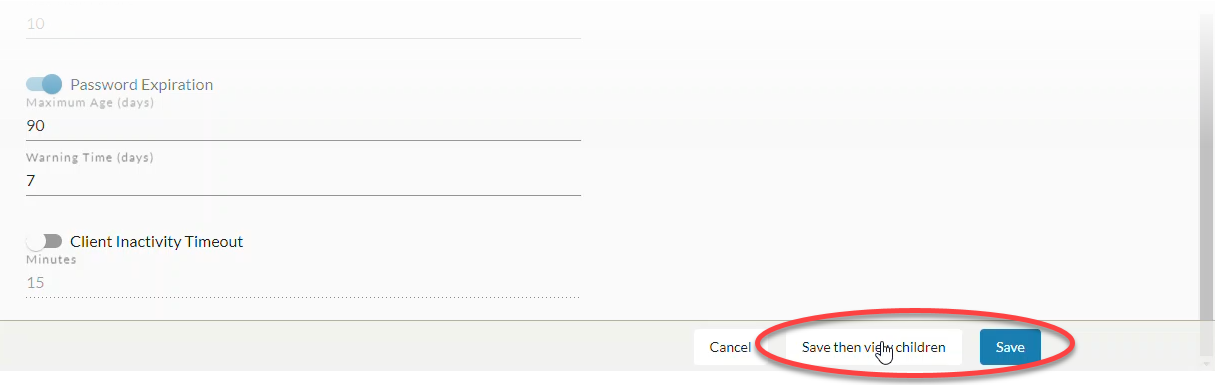
- Click Save to save the organization and go back to the list of division-level organizations -OR- click Save then view children to add groups below this division.
View or Restore Division Organization Properties
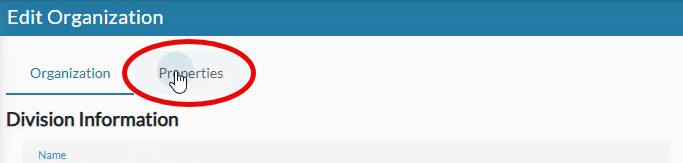
Click the Properties tab to view or restore organization properties that were added to your organization outside of nVoq Administrator, from an external web service/API call. See Division Organization Properties.