
In this release Voice Assistant is only available for a small group of beta testers.
This feature will be coming soon for preview by end users in a later release.
Use Voice Assistant in Voice for iOS to record, transcribe, and summarize multi-speaker discussions with your care team or patients. Capture details in real-time so you can stay fully present and engaged in the conversation.
Create Recording
- Get to Voice Assistant by opening the quick access menu and selecting Voice Assistant.
Note: When switching between the Dictations and Voice Assistance tabs, the text in the dictation editor does not clear.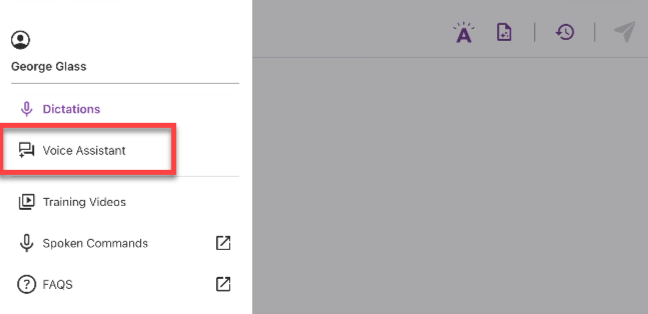
- If this is your first recording, tap the Record button to record your conversation.
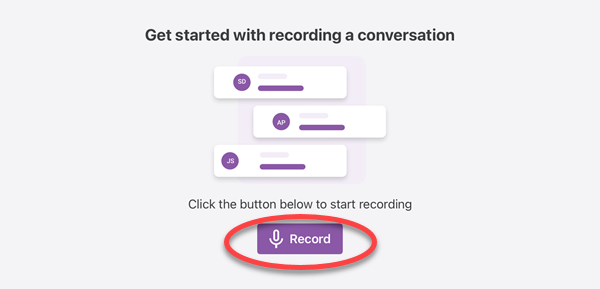 On the Voice Assistant home screen, tap New in the top-right corner.
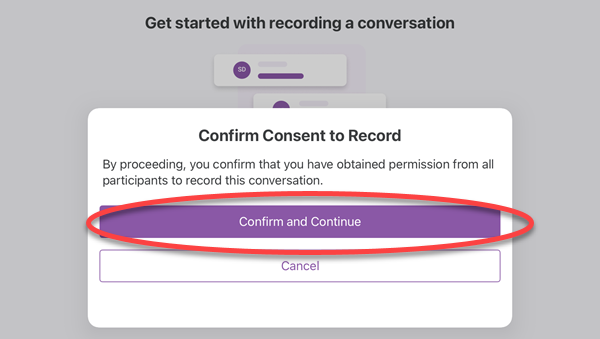
 - Tap Confirm and Continue once you’ve gotten permission from everyone in the conversation, then start recording.
Voice Assistant Home Screen
The Voice Assistant home screen displays current and past recordings under the date that each was recorded.
Each recording card displays the recording title, the date, time, and length of the recording, and the current status:
- Recording = The recording is in progress.
- Paused = The recording in progress is paused.
- In Queue = The recording has ended but it is still processing.
- Processed = The transcript and summary are ready.
Change Recording Title
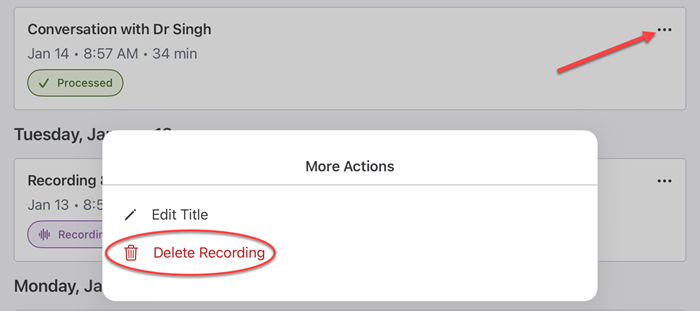
- On the Voice Assistant screen tap the More options menu (three dots) of the recording card.

- Tap Edit Title.
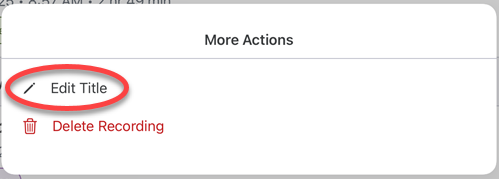
- In the Edit Title box, type the new recording name in the text field, then tap Save.
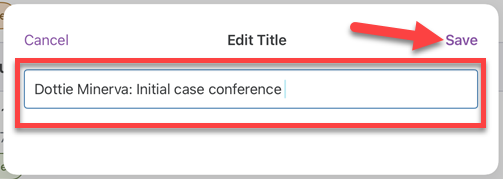
- Your recording card displays with the new title on the Voice Assistant home screen.

Delete Recording
To delete a recording:
- On the Voice Assistant screen tap the More options menu (three dots) of the recording card and then tap Delete Recording.
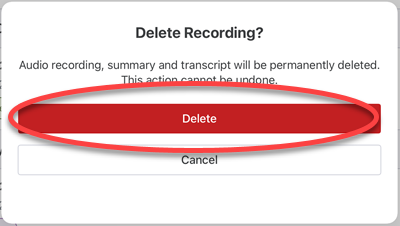
- A confirmation will appear to let you know that the audio recording, summary, and transcript will all be permanently deleted from your device. Tap Delete.
- The recording card no longer displays on the Voice Assistant home screen.
About Voice Assistant
When Voice Assistant is minimized and moved to the background, the nVoq Voice logo displays on the screen for privacy. This prevents any personal data from being accidentally visible.