
Version History in the Premium version of Intelligent Formatting tracks your formatting changes over time. Each time you accept a new format, a new version of the note is stored. You can view and restore any previous version, allowing you to return to an earlier layout or style without losing your work.
Accessing Version History
Type or dictate a note on the dictation screen and then tap the Intelligent Formatting icon, select a formatting option (if necessary), and tap the Apply button.
On a phone Intelligent Formatting is under the three-dot menu.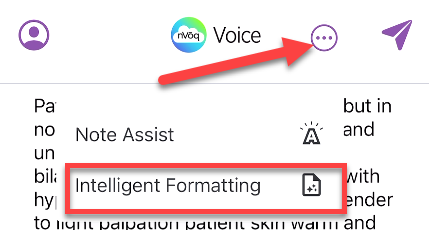
When you tap the Accept & Replace button a new version of your note is created in the Version History.
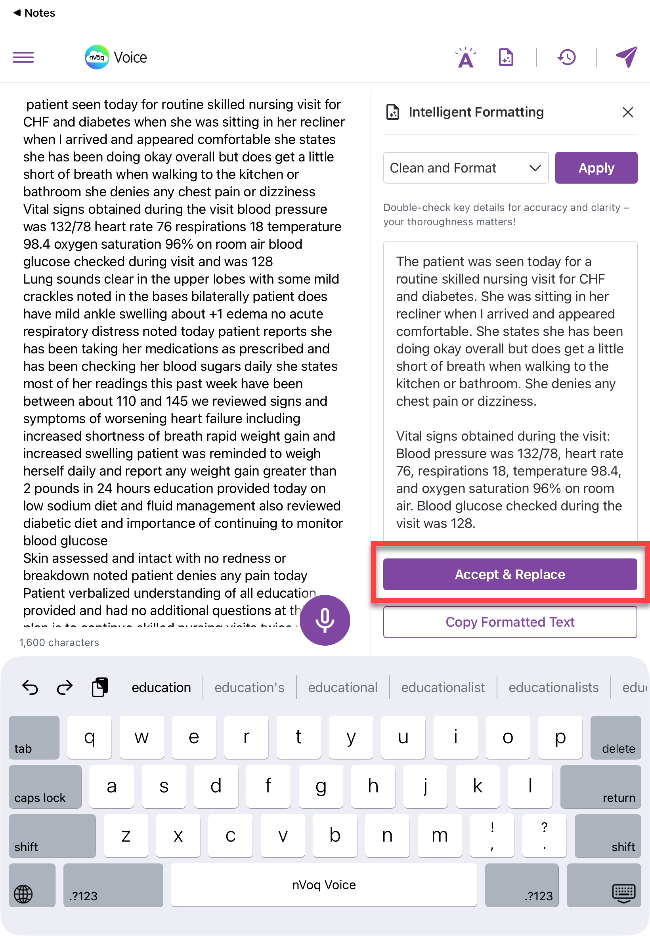
Make any needed changes, and run Intelligent Formatting again. When you tap the Accept button on the Intelligent Formatting window, another version of your note is created.
On a tablet, tap the Version History icon to view previous versions of your note.

On a phone, tap the three-dots menu, then select Version History.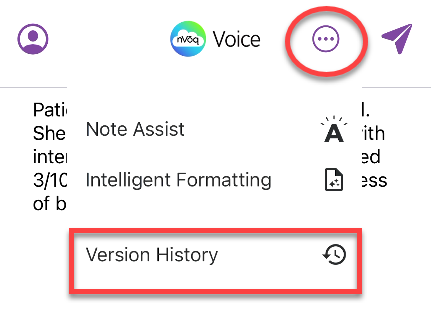
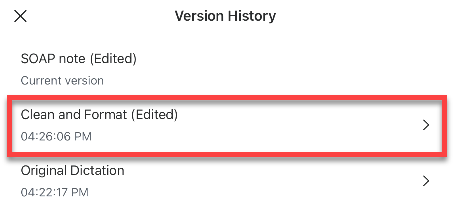
The Version History window open with a list of previously saved formatting versions.
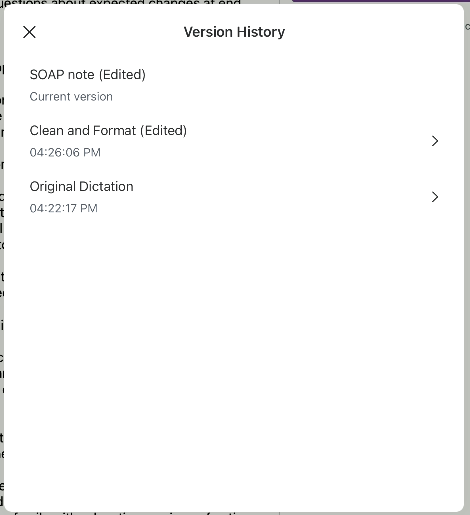
The most recent version appears at the top and is labeled “Current version.”
Previous versions are marked with a timestamp.
Versions marked with “(Edited)” indicate that changes were made since the prior save.
You can preview or restore any previous version from this list:
In the Version History window, tap a previous version of your note to preview it.
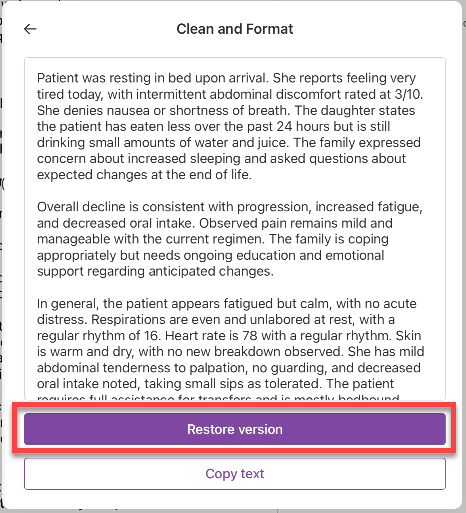
To make it your active note, tap Restore Version. This replaces the current note on the dictation screen and creates a new version in your history.
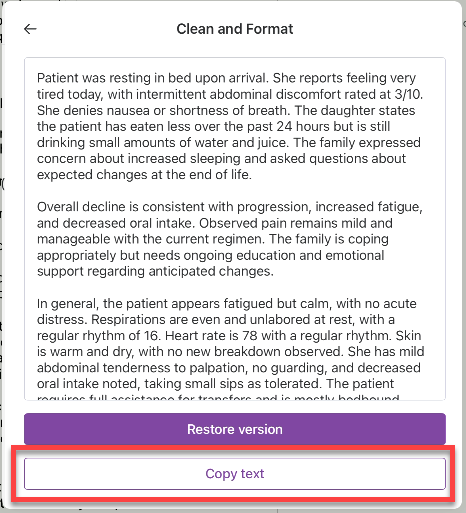
Alternatively, tap Copy Text to copy that version’s content to your device clipboard.
Tap the back arrow at the top-left of the window to go back to the version history list.
Tap the X in the top-left corner of the Version History window to close it.
Version History is cleared when you tap the Send icon to send your note to your system of record.
How Versions Are Created
A new version is automatically created whenever a formatting action occurs, such as:
Applying or restoring Intelligent Formatting
Tapping the Dictation microphone button (even if no text is added)
Typing any character using the keyboard
Tapping Backspace
Each time one of these triggers occurs, a new version is saved and labeled with (Edited).
All versions are automatically timestamped.
All version history data is encrypted while stored locally.
Persistence and Workflow
Version history remains available even if you close and reopen the app.
When you reopen your note, all prior formatting versions will still be accessible in Version History, allowing you to restore your note to any previous state during your documentation process.
Version history is cleared when you tap the Send icon.