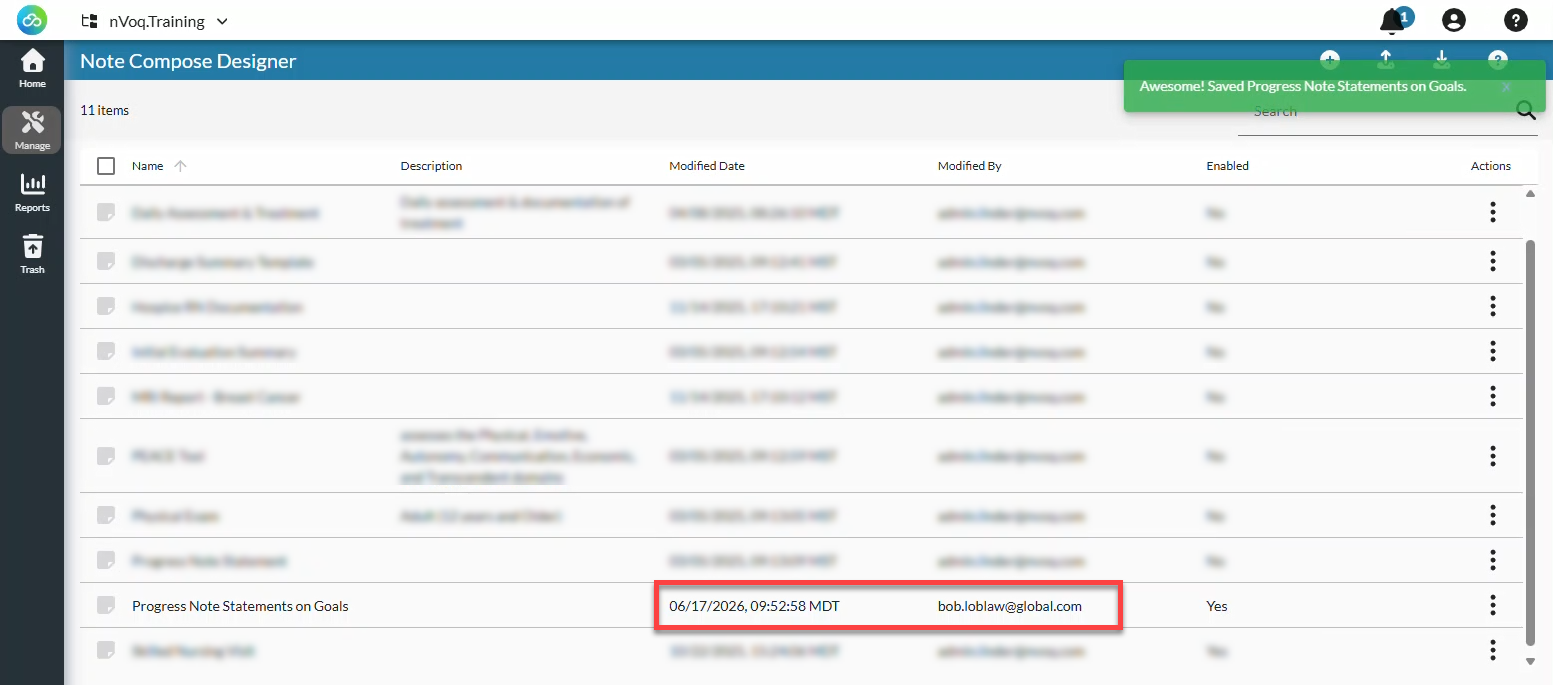
Note Compose Designer includes a History tab that allows you to view and manage previous versions of a design.
Each time a design is updated, a new version is saved. You can review previous versions to see how a design has changed over time. If needed, you can restore a previous version, making it the active version of the design.
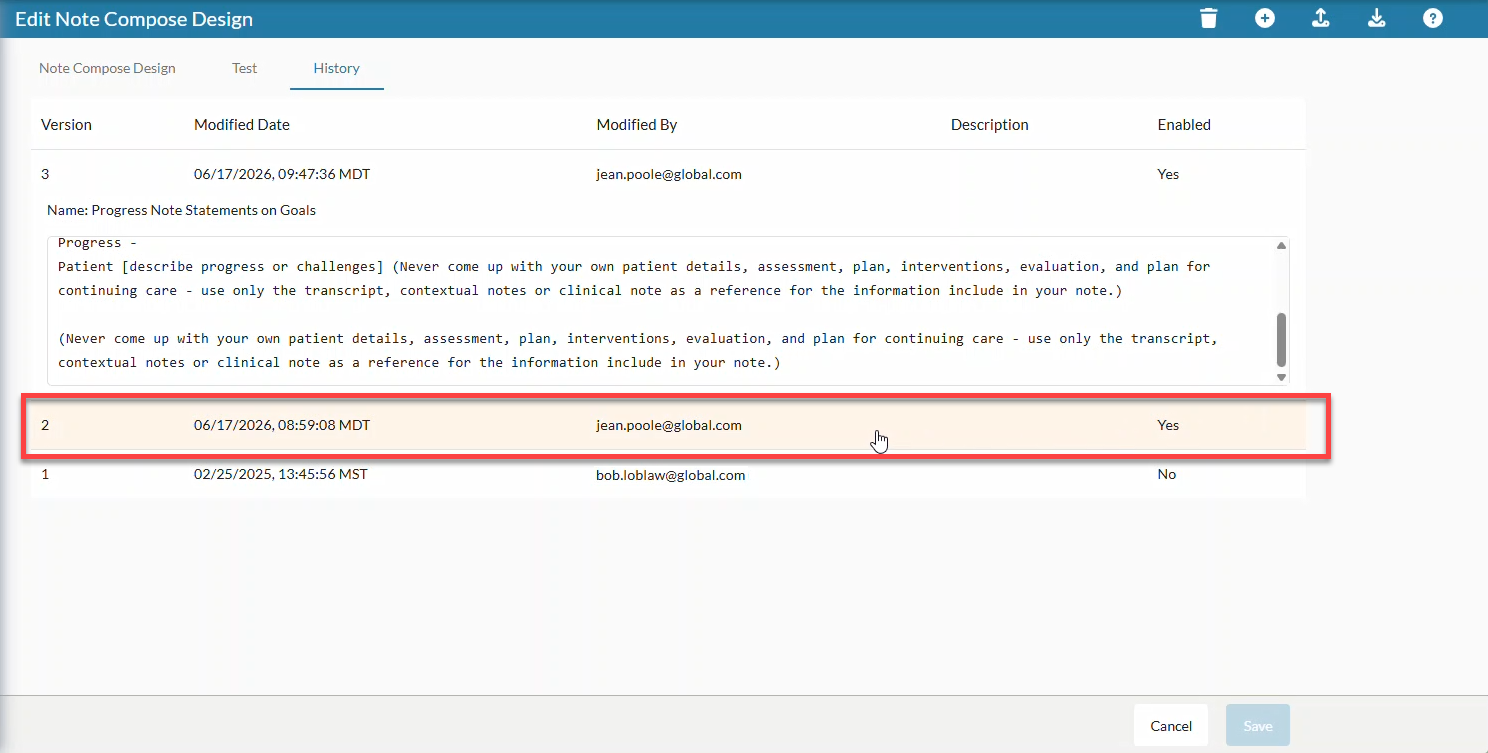
The History tab displays details for each version, including:
Version number
Date and time modified
User who made the change
Enabled or disabled status
Description
Design content
To view the history:
Go to the Note Compose page in nVoq Administrator.
This page is only visible to system-level administrators and administrators with an Administrator Role at the tenant level.
In the list view, find the design you want to edit, click on the actions menu, and select Edit Item.

Click on the History tab.
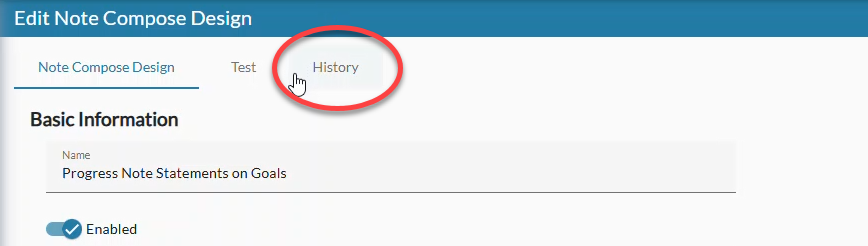
Click on a version in the list to view the design.
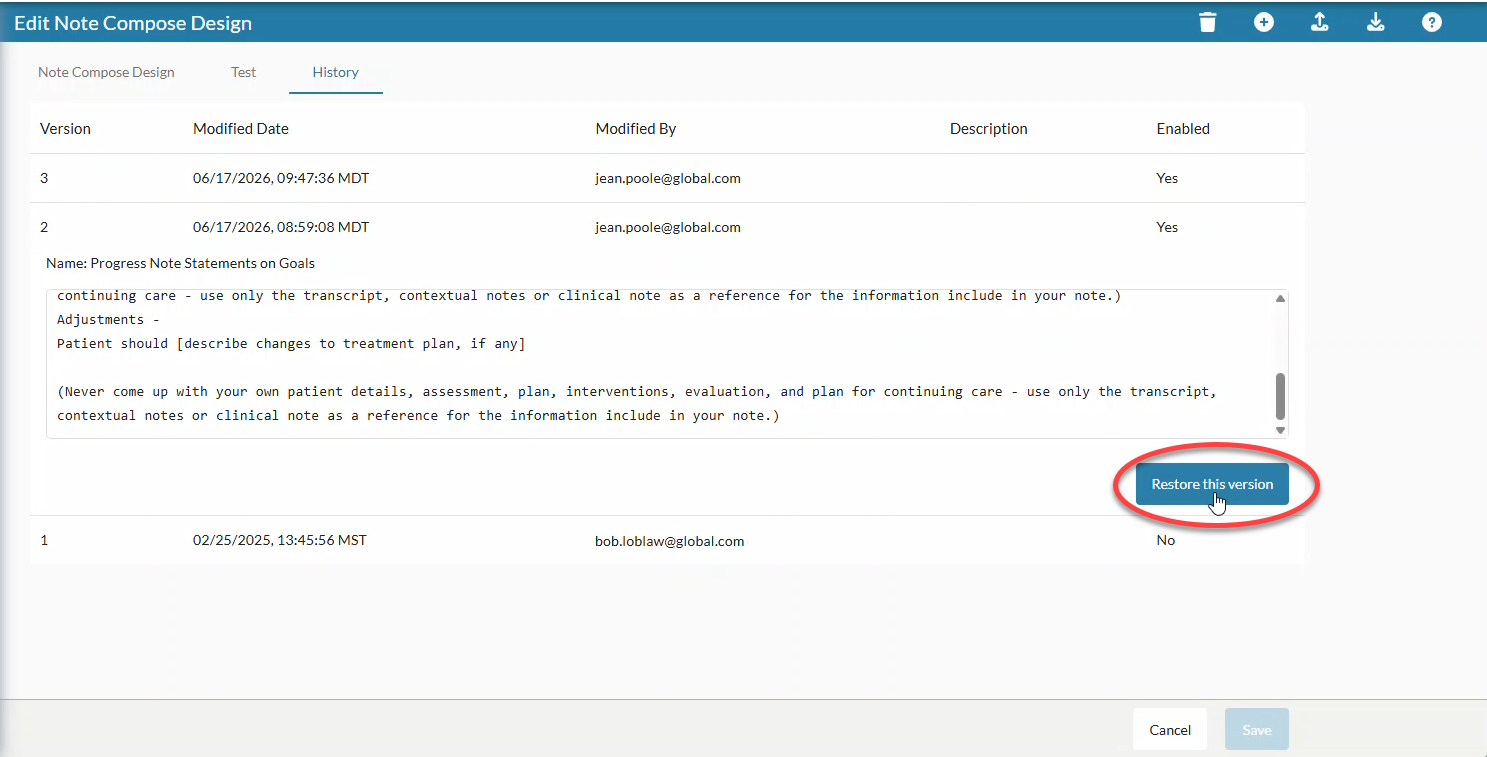
Click Restore to this version to restore the design to that version.
The design version opens automatically on the Note Compose Design tab where you can review and/or make additional changes. Click Save to restore the version.
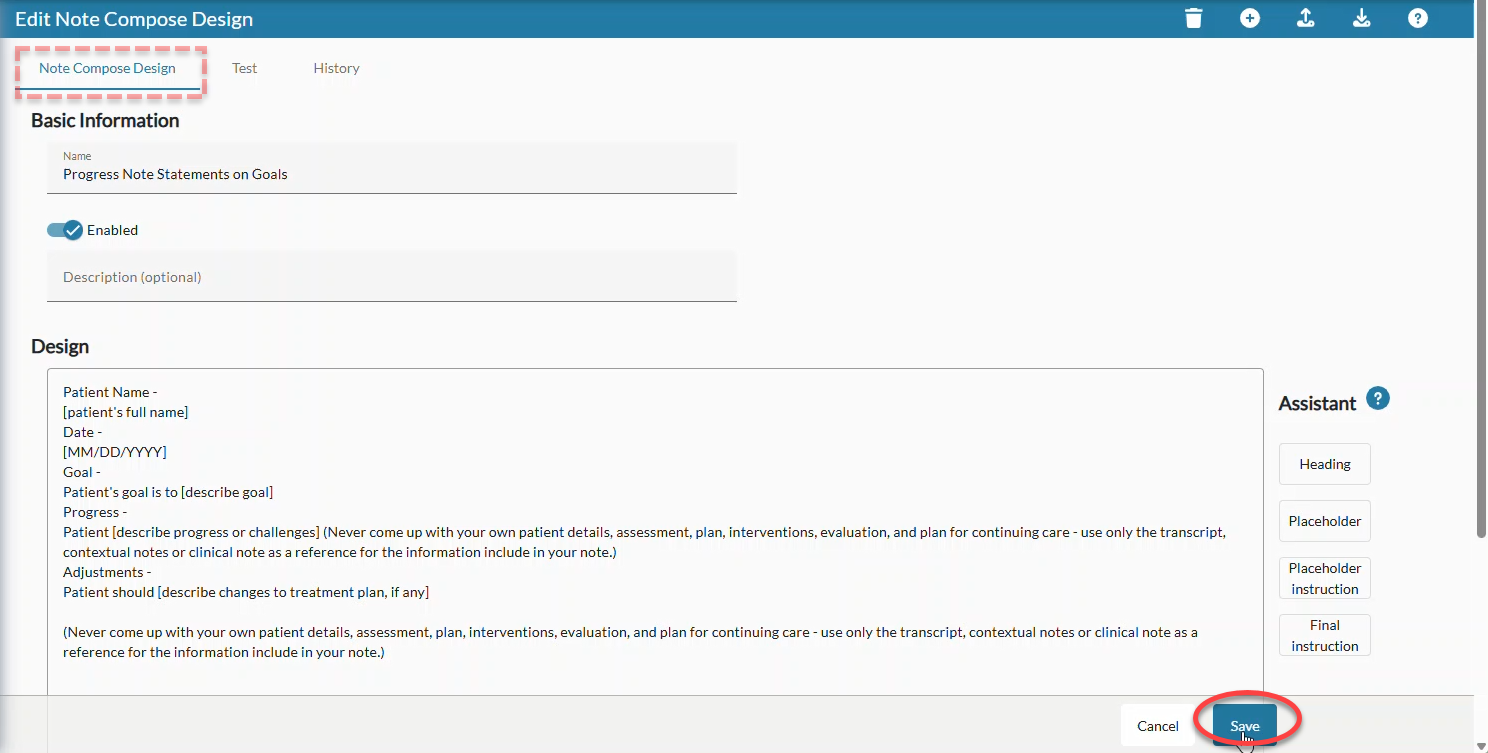
The list view of designs is updated with the new Modified Date and Modified By information, and a new history item is created.