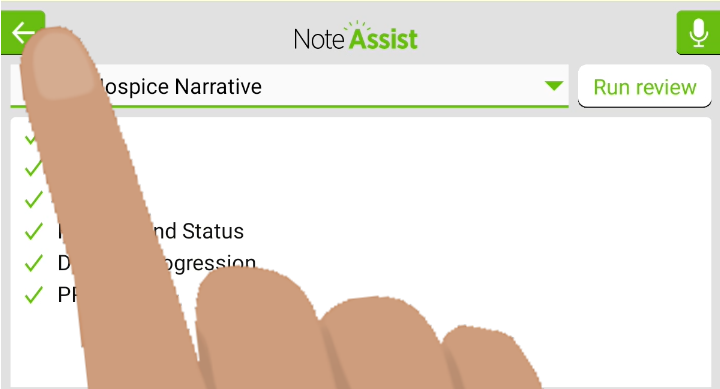
Note Assist reviews your patient notes to make sure they include required information, helping you meet documentation standards while saving time and focusing more on patient care.
You must be signed in to use this feature. Tap Sign in to Voice to sign in.

This feature is only available if Note Assist was enabled for your account in nVoq Administrator.
Voice for Android checks for enabled status every 30 minutes. If you need to access Note Assist sooner you can sign out and sign back in to Voice.
- Place your cursor in the text area of your application where your clinical note is located (or where you want to add your note).

TIP: You can use Note Compose to add punctuation to your note before running Note Assist!
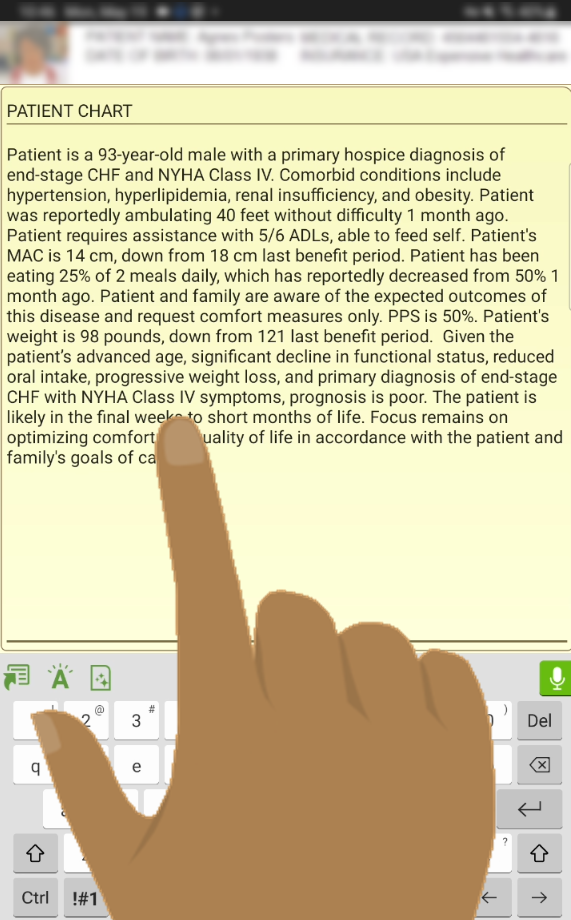
- Tap the Note Assist button
 on the keyboard.
You will only see this key if Note Assist has been enabled for your account in nVoq Administrator. If it is enabled while you are signed in to Voice, log out and log back in to see the key.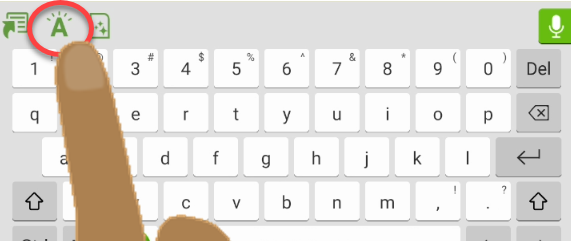 Depending on the type of field into which you place your cursor, the Note Assist button may not be available.The Note Assist button does not appear when your cursor is in certain fields, including number, phone number, password, or date fields.If you tap the Note Assist button after your password has expired you will be taken directly to a screen where you can create a new password.After you change your password Voice takes you to the Settings screen. To get back to your previous application tap the < button at the bottom of the device screen.
 - Note Assist overlays the keyboard. If necessary, select the appropriate review from the menu.
- The review you select will be remembered and run automatically the next time you run Note Assist.
- Reviews and categories that have been updated in nVoq Administrator are refreshed in Voice for Android every 30 minutes, or when you log out and log back in.
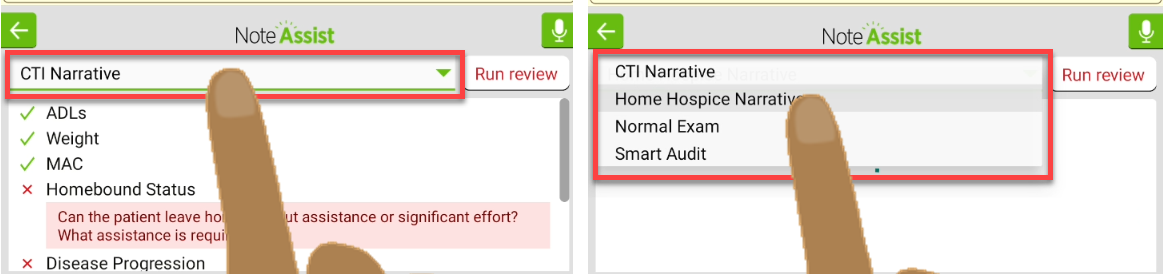
- Only the reviews selected for your account in nVoq Administrator appear in your menu.
- If no reviews are selected for your account, all reviews available for the tenant are displayed.
- If no reviews exist for your organization you will see a message in the Note Assist area stating, “Note Assist is not configured.”
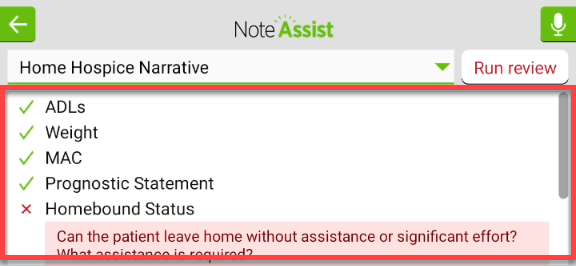
- A list of categories customized for the selected review appears in Note Assist.
- A category listed with a green checkmark ✔ is already included in your note.
- A category listed with a red X is not included and needs to be added.
- These may include a coaching tip that indicates what information is missing or needs to be added to your note in order for the category to pass. Coaching tips are optional and are added by your administrator in nVoq Administrator.
- Check your spelling! Words or phrases must be an exact, case-insensitive match with those that are configured for your organization in order to be counted.
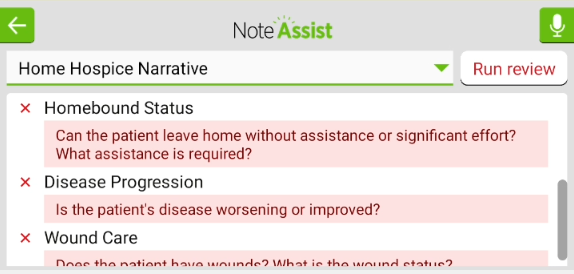
- If there are more categories than fit on your device screen, a scroll bar will display to the right of the category list. Swipe up on the list to view more categories, if available.
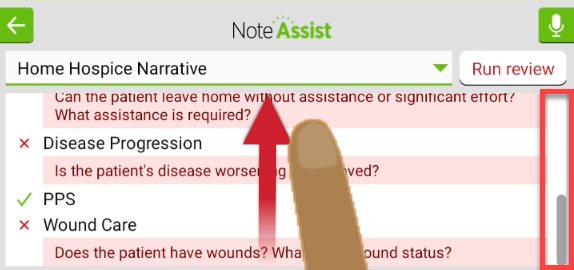
- These may include a coaching tip that indicates what information is missing or needs to be added to your note in order for the category to pass. Coaching tips are optional and are added by your administrator in nVoq Administrator.
- You can optionally hide the green checked categories so you only see the ones that fail the review. See Settings: Show Note Assist Passing Review Categories.
- Place your cursor where you want to add the missing category information to your note, then tap the microphone button to dictate the missing information.
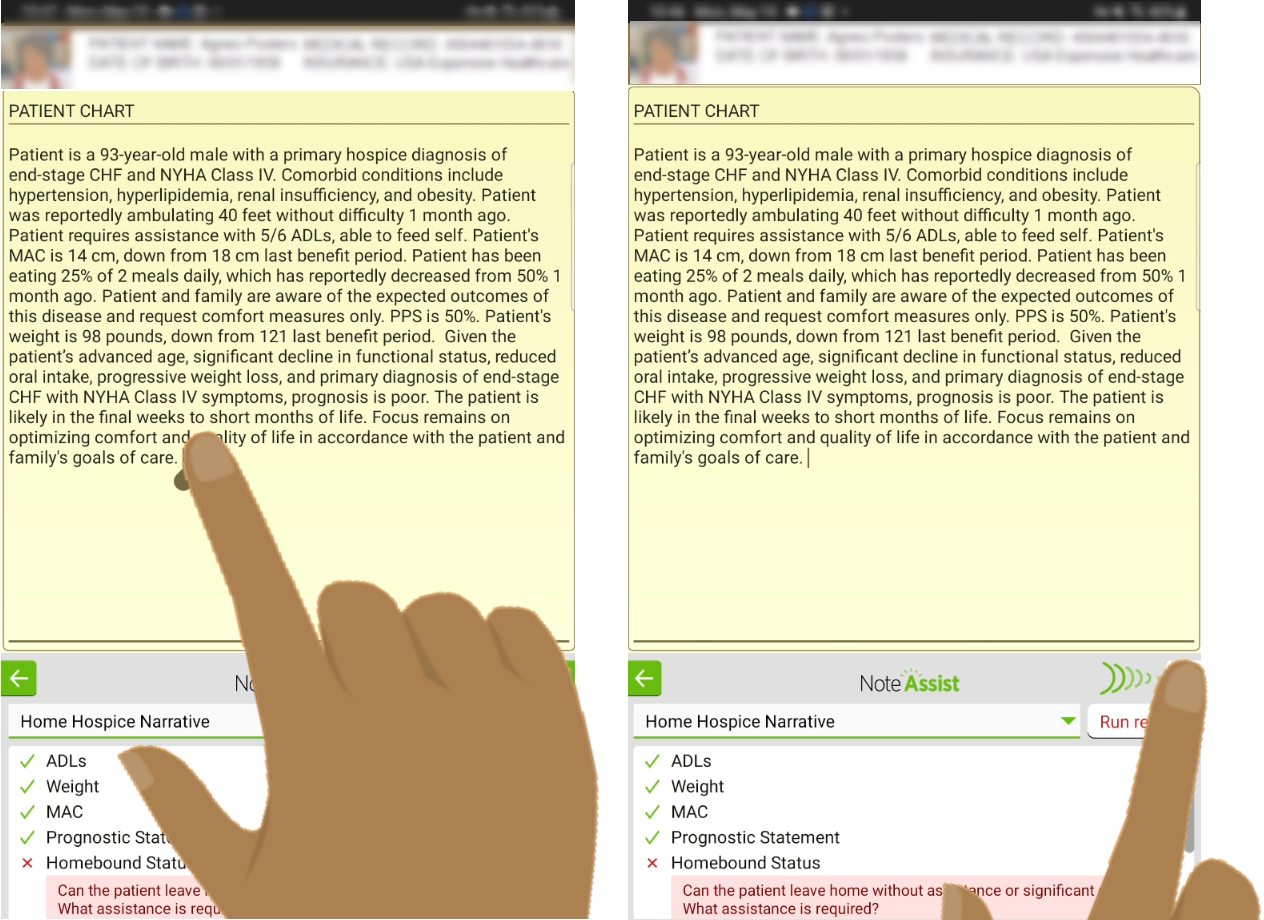
- Tap the microphone button again to stop recording.
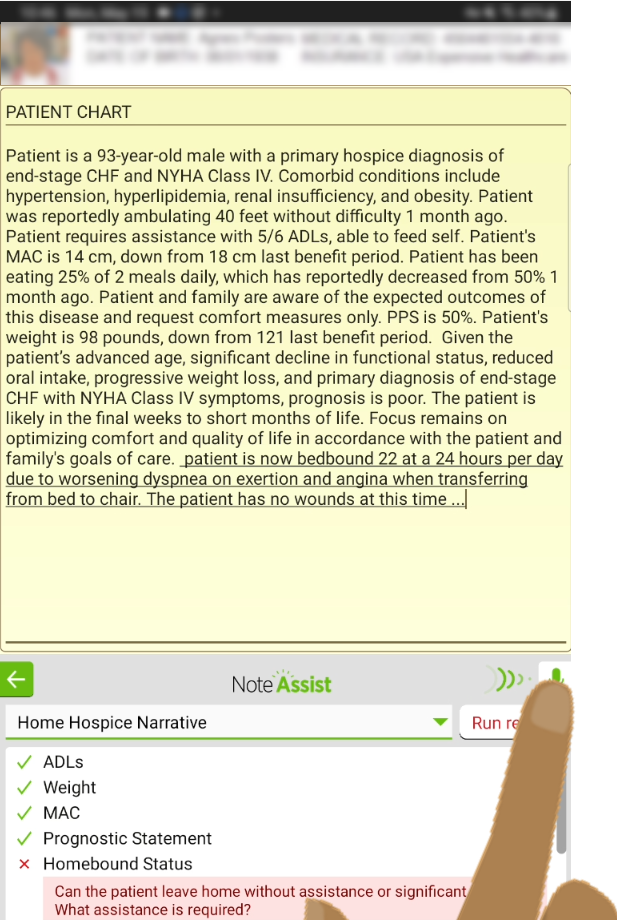
- Tap the Run Review button to run another review of the review.
- Depending on how Note Assist is set up for your organization, your review may re-run automatically when you stop the dictation. (This can be configured by your administrator via API.)
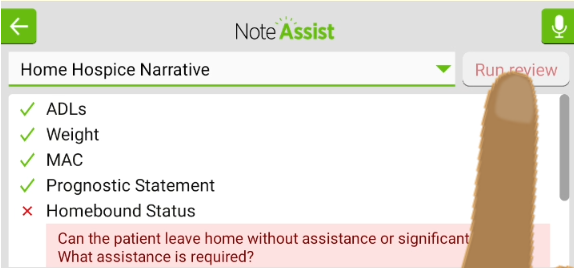
- Depending on how Note Assist is set up for your organization, your review may re-run automatically when you stop the dictation. (This can be configured by your administrator via API.)
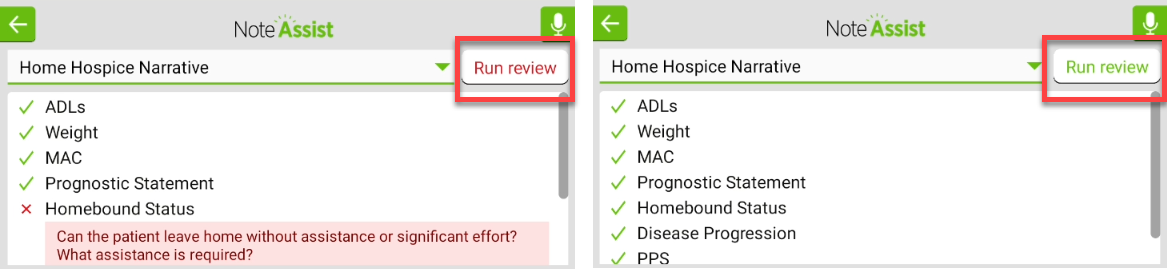
- If any category fails, the Run Review button text will stay red. When all categories pass, the Run Review button text turns green.
- If you have the Show Note Assist Passing Review Categories setting disabled the Note Assist window will display a message letting you know that all categories have passed. If you want to see the passing categories, switch the Show Note Assist Passing Review Categories toggle (in the Voice Settings) back on.
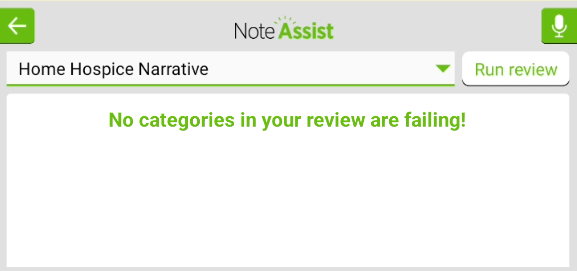
- If you have the Show Note Assist Passing Review Categories setting disabled the Note Assist window will display a message letting you know that all categories have passed. If you want to see the passing categories, switch the Show Note Assist Passing Review Categories toggle (in the Voice Settings) back on.
- Tap the green arrow button to go back to the keyboard.