When troubleshooting persistent issues, protecting your privacy, or preparing to sell or give away your device, a complete uninstall (removing Voice for Android along with its data and cache) is recommended. This fully removes the app, including saved settings, login information, and temporary files, ensuring a clean slate.
A standard uninstall is best for general cleanup when you may want to reinstall Voice later. This removes the app itself but may leave behind some data or cache files.
Standard Uninstall
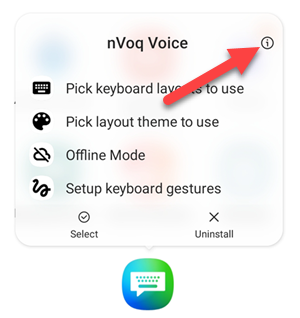
- Long press on the nVoq Voice icon.

- Tap the Info icon.
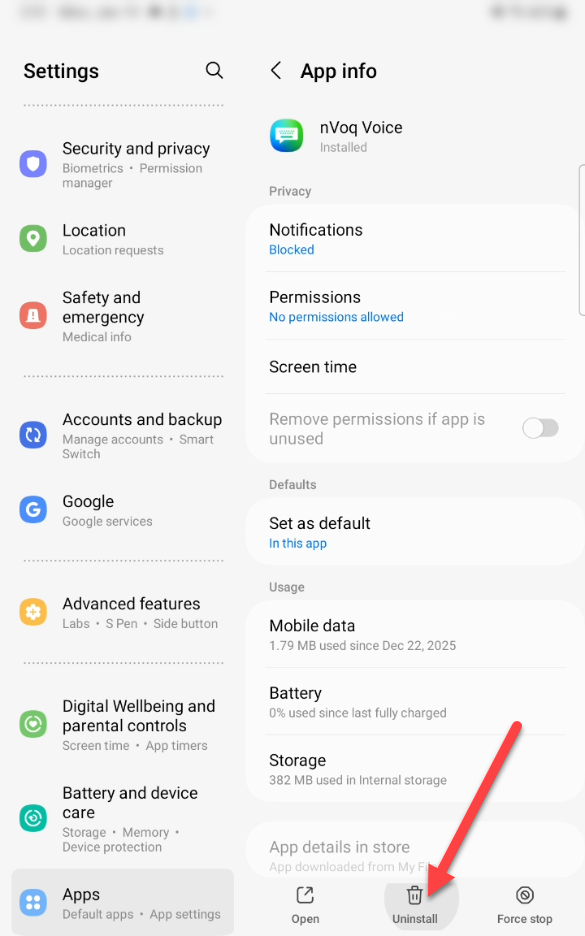
- Tap Uninstall at the bottom of the App Info screen.
Complete Uninstall
For a complete uninstall, clear cache and data before uninstalling:
- Long press on the nVoq Voice icon.
- Tap the Info icon.
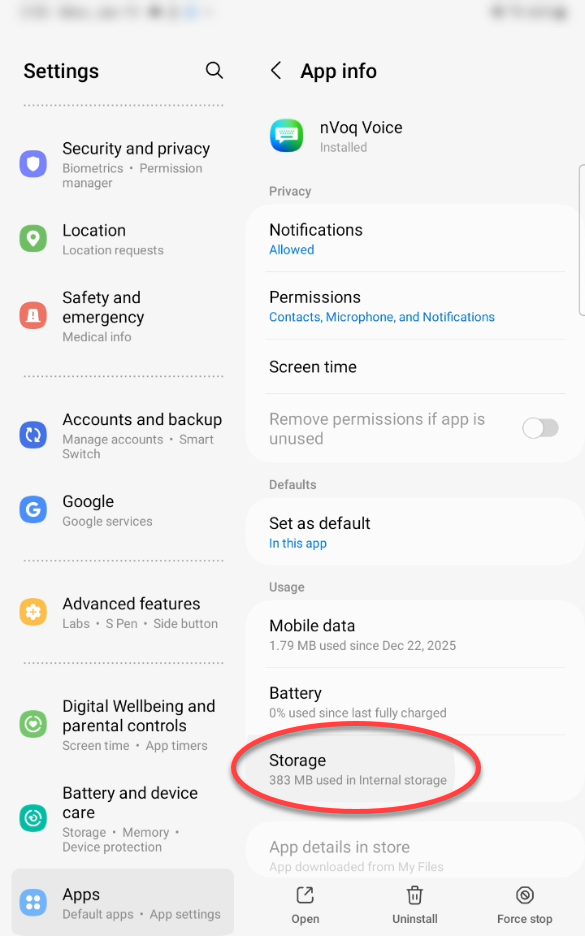
- Tap Storage.
- Tap Clear Data.
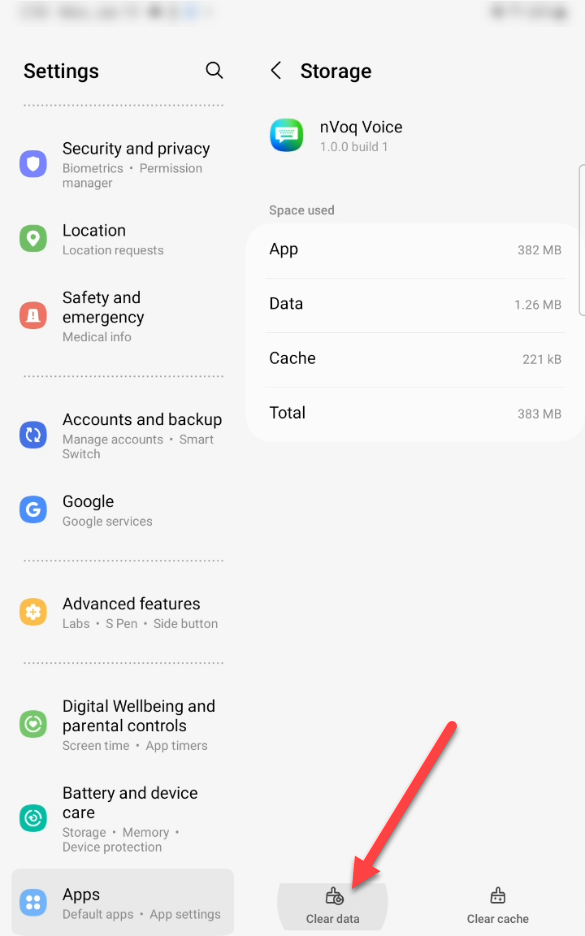
- A message will appear to warn you that this will delete all of the app data, files, and settings. Tap Delete.
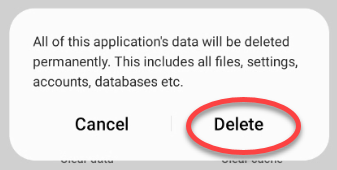
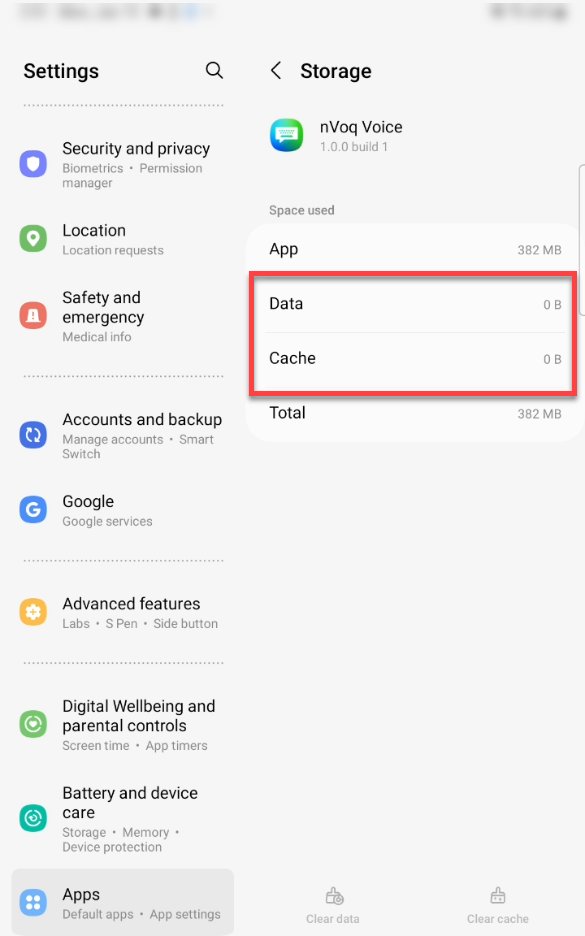
- This will automatically clear both data and cache.
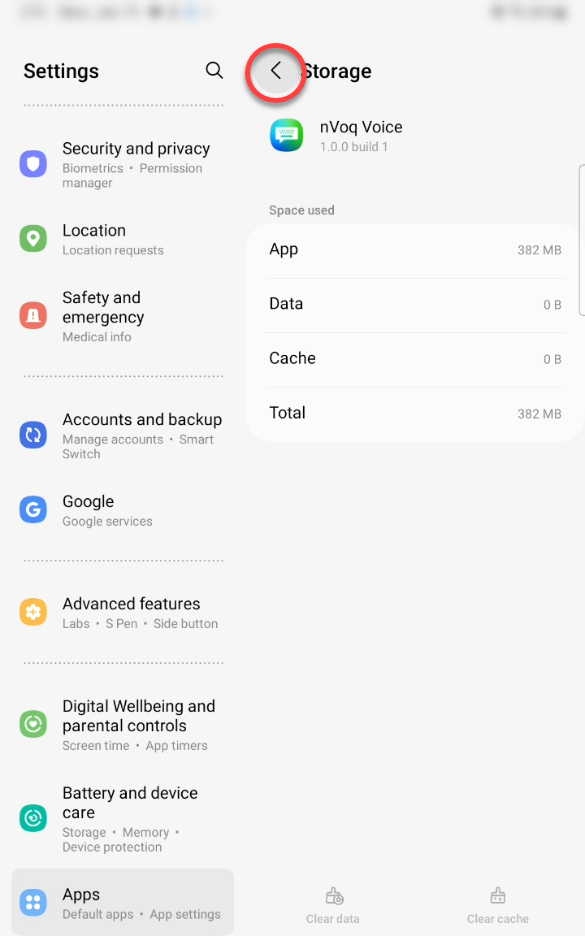
- Tap the back arrow at the top of the Storage screen.
- Tap Uninstall at the bottom of the App Info screen.