Voice Shortcuts make it easy to paste text that you use repeatedly.
You must be signed in to use this feature. Tap Sign in to Voice to sign in.

User shortcuts must be enabled for your account in nVoq Administrator to see the My Shortcuts list. If you do not see My Shortcuts, contact your administrator.
Use Shortcuts
- Make sure you are in the nVoq Voice dictation field.
- Tap the shortcut button to open the shortcut menu.
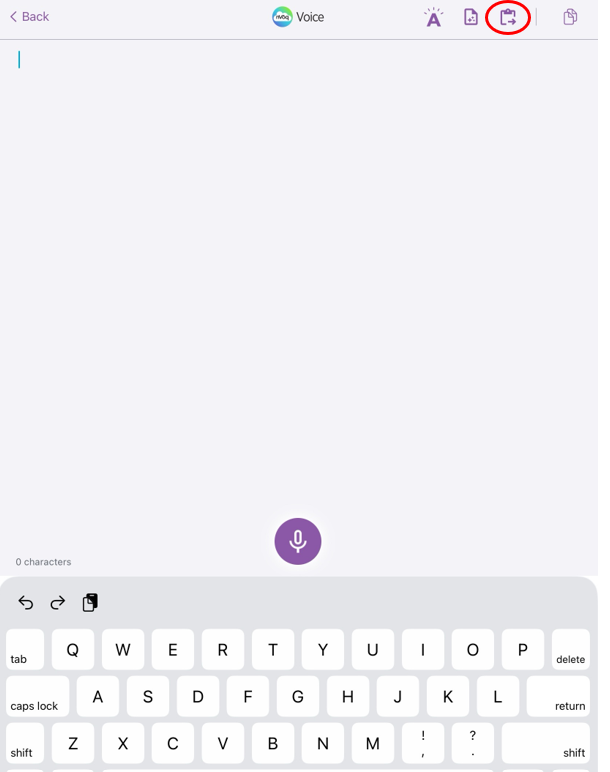
- Tap the arrow next to a shortcut list to view the shortcuts inside.
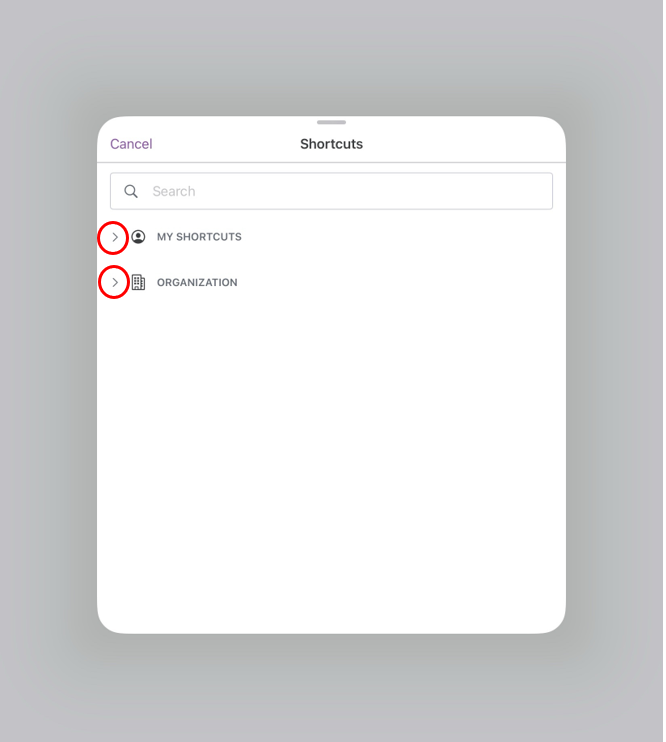
- There may be two shortcut lists depending on whether user shortcuts are enabled for you.
- MY SHORTCUTS shows shortcuts created for your account (if any). Only you can see these shortcuts.
- ORGANIZATION shows shortcuts created for your organization by your administrator.
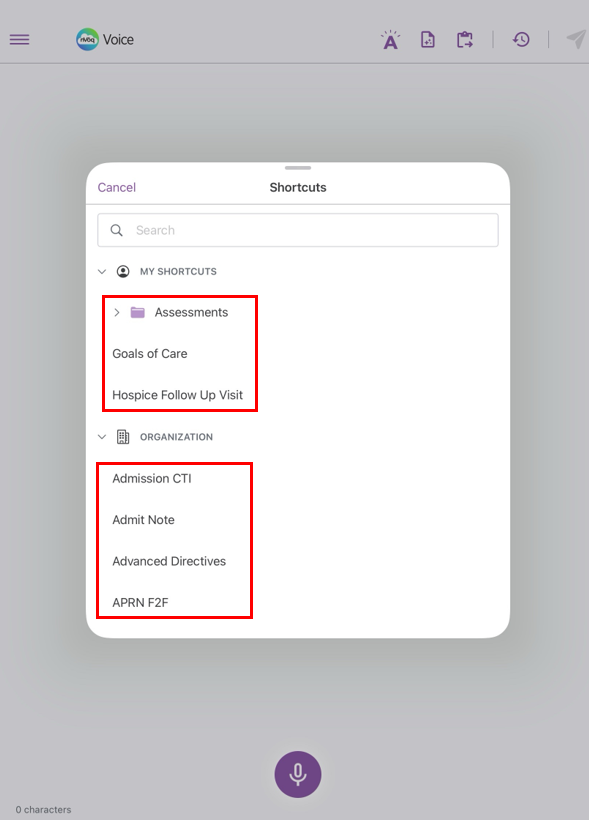
- If you have shortcut folders, tap the arrow next to a folder to view the shortcuts inside. See Use Shortcut Folders below.
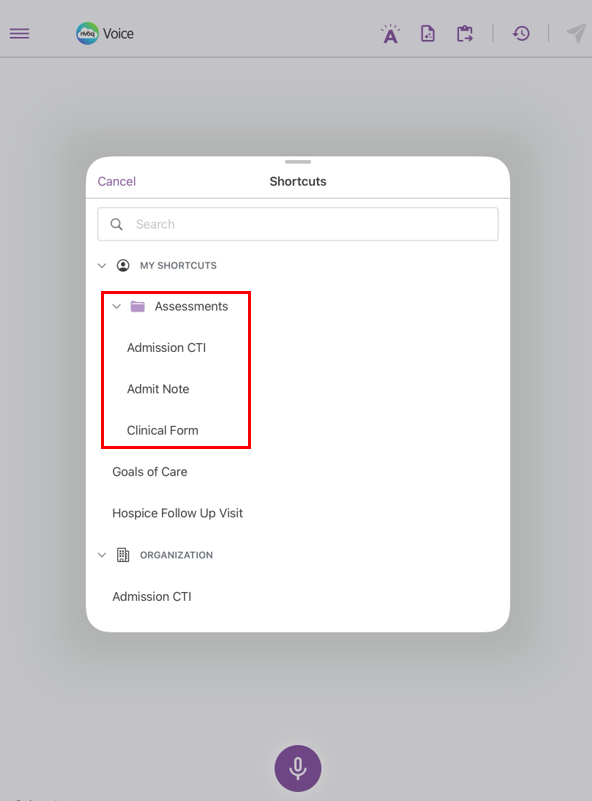
- Tap a shortcut name.
- The contents of the shortcut open in a small preview window below the shortcut name.
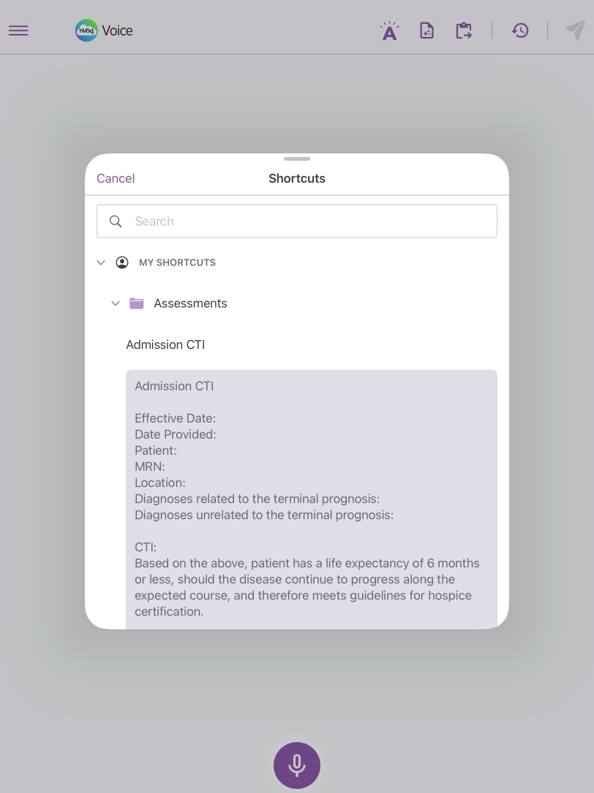
- Tap the preview window to insert the shortcut text.
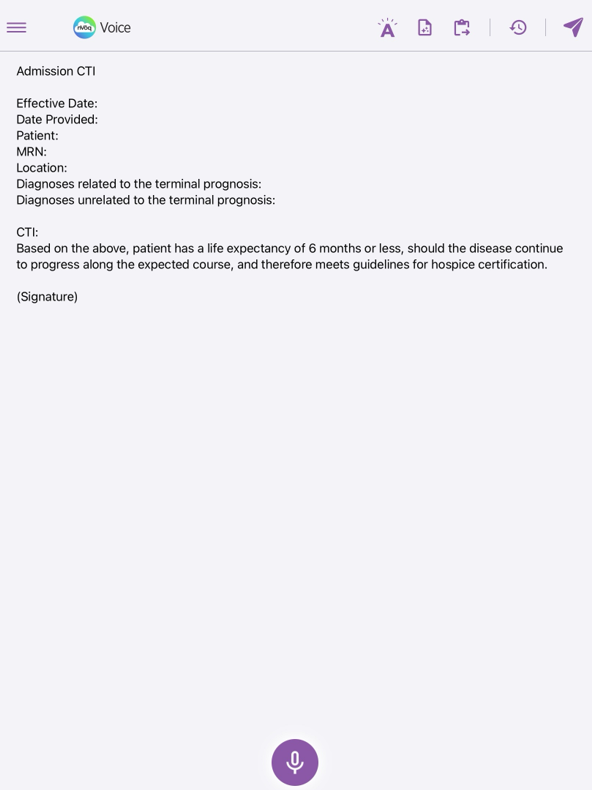
- Shortcut text is pasted where you placed your cursor in the Voice for iOS text field.
Use Shortcut Folders
Folders organize shortcuts so you can easily find the ones you need. Most of the time folders are created for your Organization shortcuts by your company.
- Open the shortcut menu (see Steps 1 and 2 above).
- Tap the arrow next to MY SHORTCUTS or ORGANIZATION to view the list.
- Tap the arrow next to a folder to view the shortcuts inside.
- Tap a shortcut name inside the folder to open the preview window, then tap the preview window to insert the text.
- The shortcut text is pasted where you placed your cursor.
Create Shortcut Folders
If you're interested in using folders you can ask your administrator to create them for you.
Shortcut folders are created in nVoq Administrator. Follow the instructions at Admin: Shortcut Folders.
Related articles