A Review is a set of categories that are used to check a clinical note for completeness. Reviews may be assigned based on job function or type of clinical note that the user will be creating. For example, you might have one review that checks clinical notes created by a home hospice nurse, and different one that checks clinical note that would be run by a physician in a clinic. The home hospice nurse review may be named, "Home Hospice" and include categories labeled ADLs, PPS, and Medications. The physician's review might be named, "Normal Exam" and include categories HEENT, Cardiovascular, and Respiratory.
At the top of the Edit Note Assist Review page is a blue toolbar that allows you to delete the current review, create or upload a new review, download the current review, run Note Assist QA against the review, or open the documentation for the page.

Add or Edit Note Assist Review
To add a new review, go to the Reviews tab on the Note Assist page and click the plus symbol
 in the blue toolbar. Before you can add a review you must have at least one category.
To edit an existing review, click the actions menu next to the one you want to change, and select Edit Review.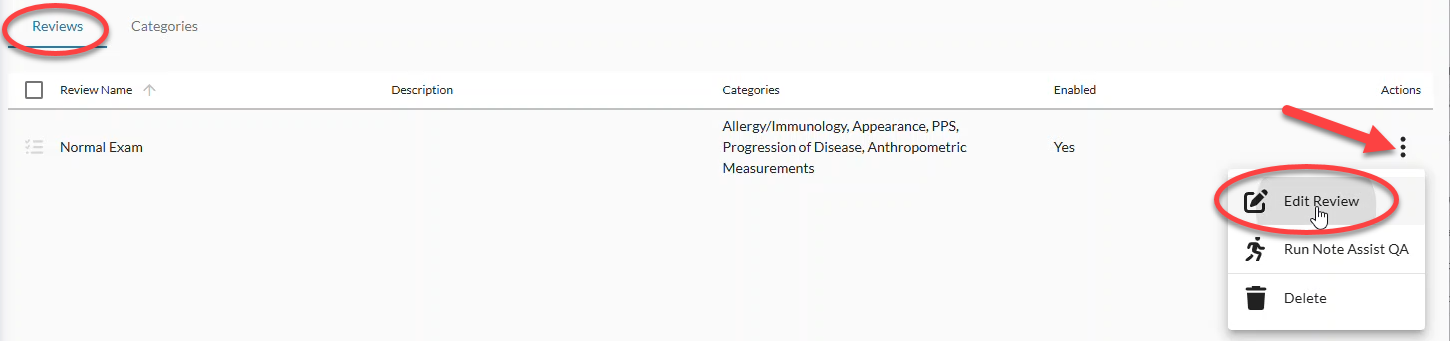
Enter a Name for the review.
This name should clearly define what type of note or who should use the review, as it will be used by end-users to determine which review they select when running Note Assist.Duplicate names are not allowed.
Review names are case insensitive.
The name will appear in a drop-down menu at the top of the Note Assist window for all Note Assist users in the tenant.

Optionally, click the toggle to enable(✓) or disable (-) the review.
A disabled review is not displayed in any dictation client.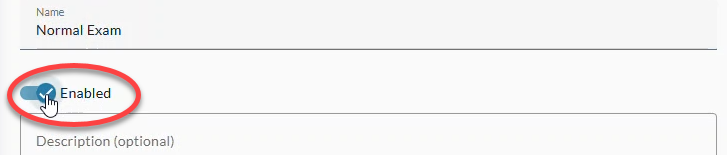
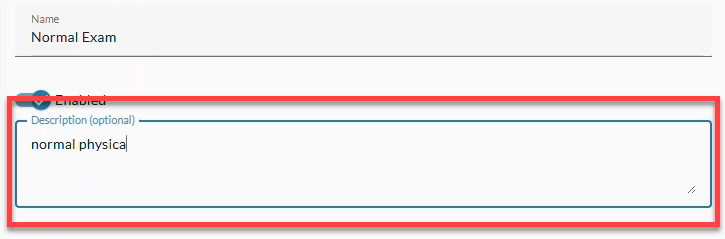
Optionally, enter a Description of the review.
The description can include any information you want to remember about this review. It only appears in nVoq Administrator.
To add a category to the review, click the plus symbol next to a category under the Add Some More Categories section.
Optionally use the Search field to find a specific category in the list. (Click the X next to the search term to clear the field.) The search is case insensitive.
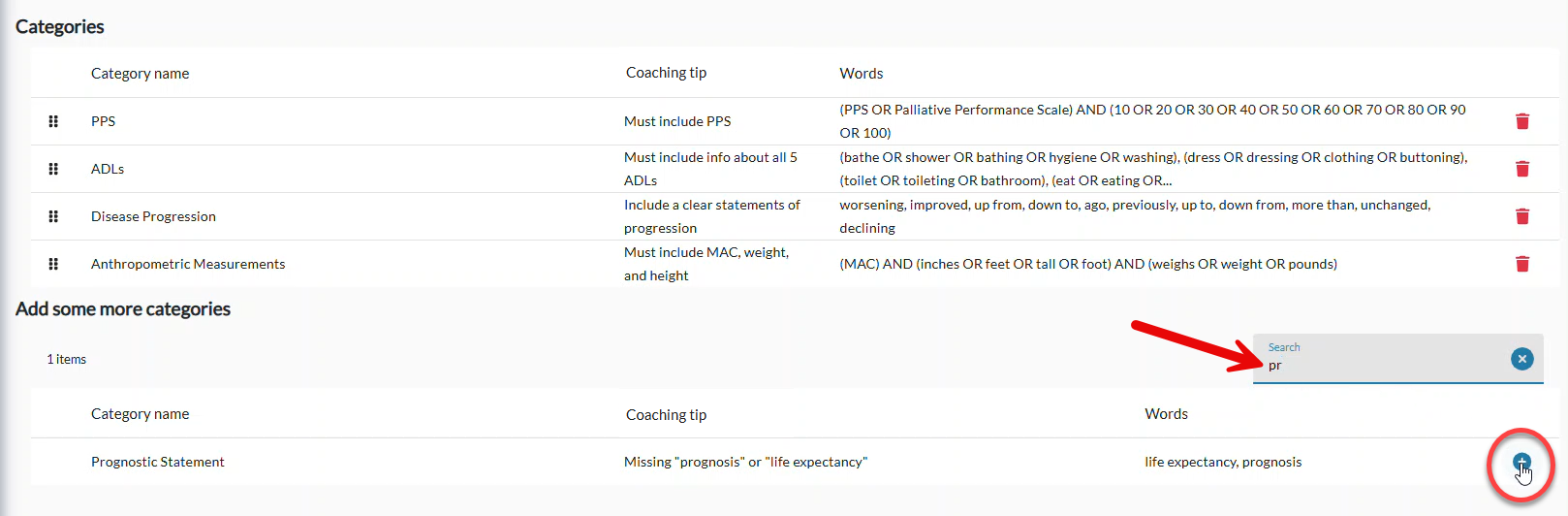
Each category selected will be used to see if a clinical note meets that specific criteria and will appear with either a checkmark or an X to indicate whether or not the note meets the criteria.To remove a category from the review, click the trash can icon on the right side of a category listed under the Categories section.

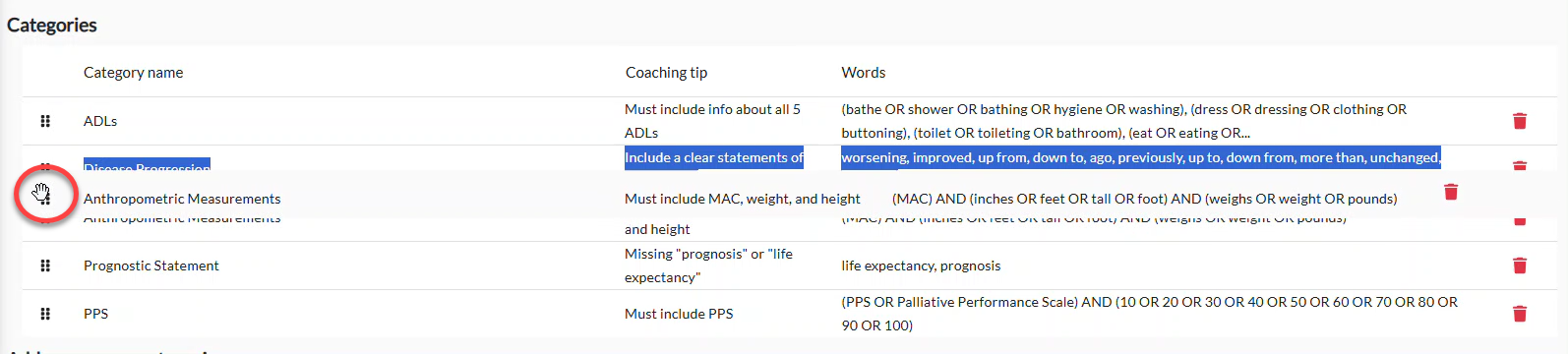
To change the order of categories, click on the drag icon
 and drag the category to the desired location in the list.
Categories appear in Note Assist in the order that they are listed in the review. You may want to put them in the order that you would expect to see them in the clinical note.
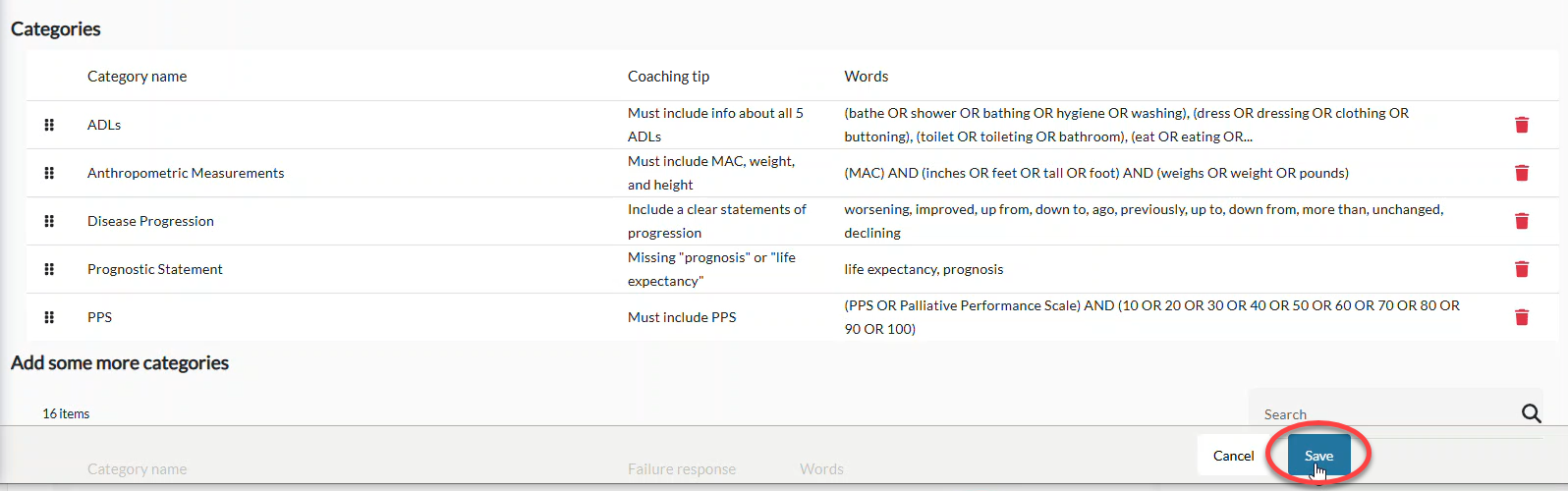
When you have added or removed all necessary categories, click the Save button at the bottom of the screen. Your review is created! Go to the Accounts page to assign the review to users.
Test a Review
On the Add or Edit Note Assist Review page, click on the Test tab.

Enter text into the Test Text area that might be in a clinical note.
 Optionally drag the lines in the lower-right corner to increase the size of the text area if you need more room.
Click the Run button to run the note against the review to see if words in the note are matched correctly against categories.

Each category in the review is listed in the Review Search List below the text area.
A category that matches to text in the note is listed with a green checkmark ✔.
A category that does not match any text in the note is listed with a red X.
If a coaching tip was added for that category, it will appear beneath the category name in red text with a pink highlight for added visibility.
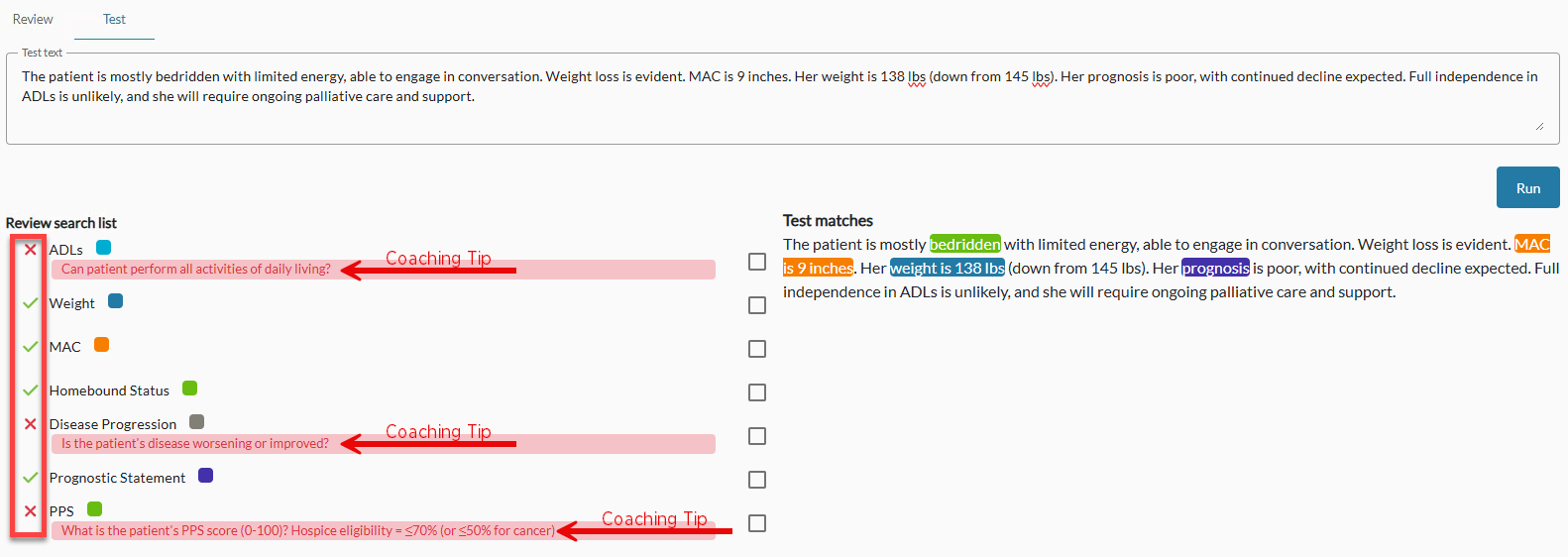
Each category is assigned one of six colors. The clinical note added to the text area is duplicated in the Test Matches area where words that match a category are highlighted in the category's color.

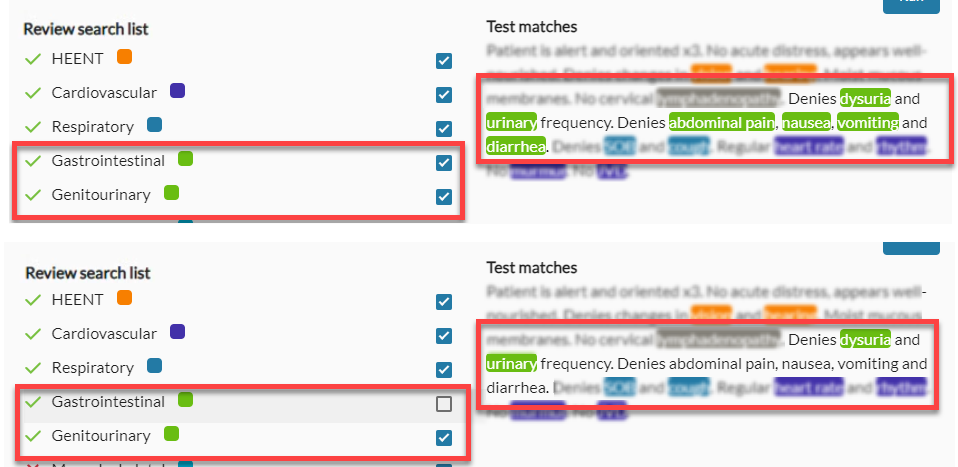
If the same color is used on multiple categories you can turn on/off the highlighting for one by clicking the box to the right of a category to see which words match. If your review has many categories, uncheck all the boxes and turn them back on one by one to clearly see words that match each category. (You don't need to worry about categories with a red X since those didn't match any words.)
If the test not includes all of the information that is required for the category but the category still does not pass, it may be that the information is included in the note in the wrong order, or is not within the configured limit range.
Remember that if you are using AND statements, the order of the AND statements must be the same in the note as they appear in the category list. As a work-around you could create a separate category for each AND statement to avoid this.
If the issue is with limit range, try increasing the limit range.

About Reviews
Reviews appear in the Note Assist menu in nVoq Voice in alphabetical order. The first review in the list is selected by default.
If no reviews exist but categories are available:
In nVoq Voice for Windows, all categories appear under the review name All Categories.
In nVoq Voice for iOS and Android, the message “Note Assist is not configured” is displayed.
If reviews or categories are updated while users are signed in to nVoq Voice, the changes may take up to 30 minutes to appear.
Upload a Review
Download the Review
Run Note Assist QA
See full instructions for running Note Assist QA and analyzing the data at Note Assist QA.
Download the QA Template
On the Run Note Assist QA page, use the Download review template file link to create your own file.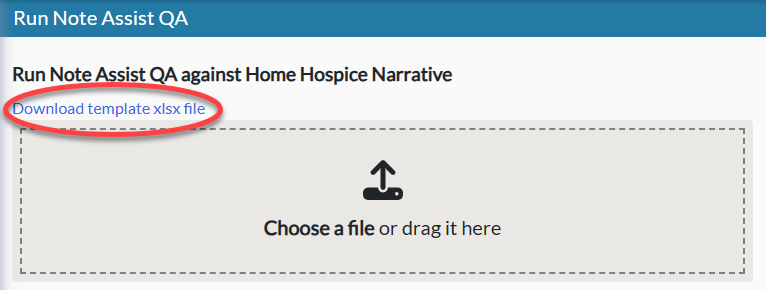
The template includes the required columns on the file:
Narrative - The clinical note text that will be run against the selected review.
Narrative Date - The date that the narrative was created.
Name - The name of the person who created the narrative. This name does not need to have a corresponding nVoq account.