Note Compose may also include structured note formats designed for specific clinical workflows, such as SOAP notes. In addition to adding punctuation, Note Compose can identify key information, condense transcript content, and organize it into a structured note that is ready for review.
- Place your cursor into a text area where you want to add text and dictate as you would normally speak. You don't need to say punctuation. You can also type text.
- Press the F2 key on your keyboard or the dictation button on screen to start and stop your dictation.
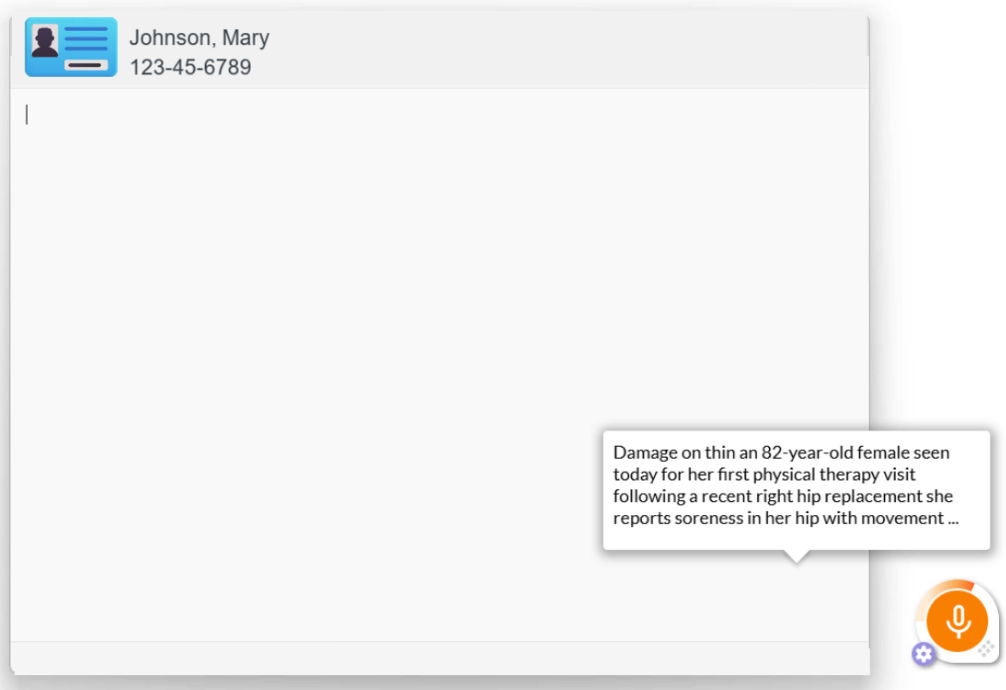
- Press the F2 key on your keyboard or the dictation button on screen to start and stop your dictation.
- When you are done entering information in this field, press the F9 key on your keyboard with your cursor in your transcript.
- Alternatively you could press the F9 key with your cursor in a blank text area and complete your entire note directly in the Note Compose window.
- You can change the Note Compose hotkey in the Voice Settings.
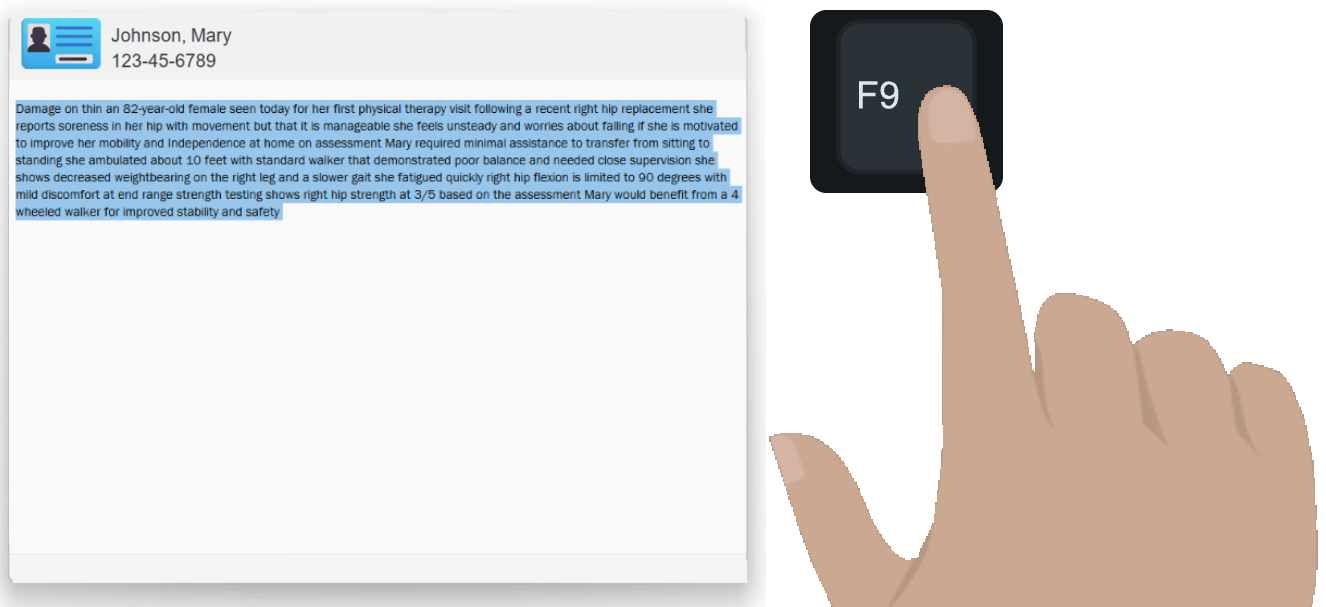
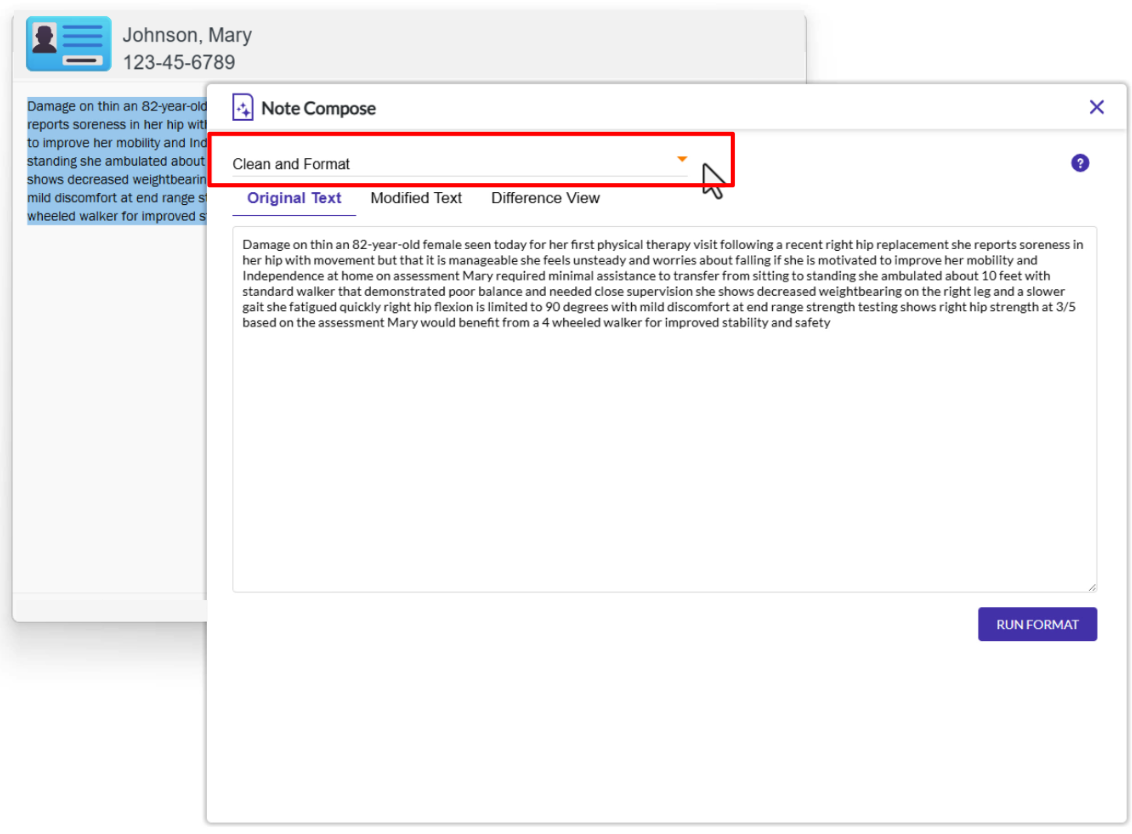
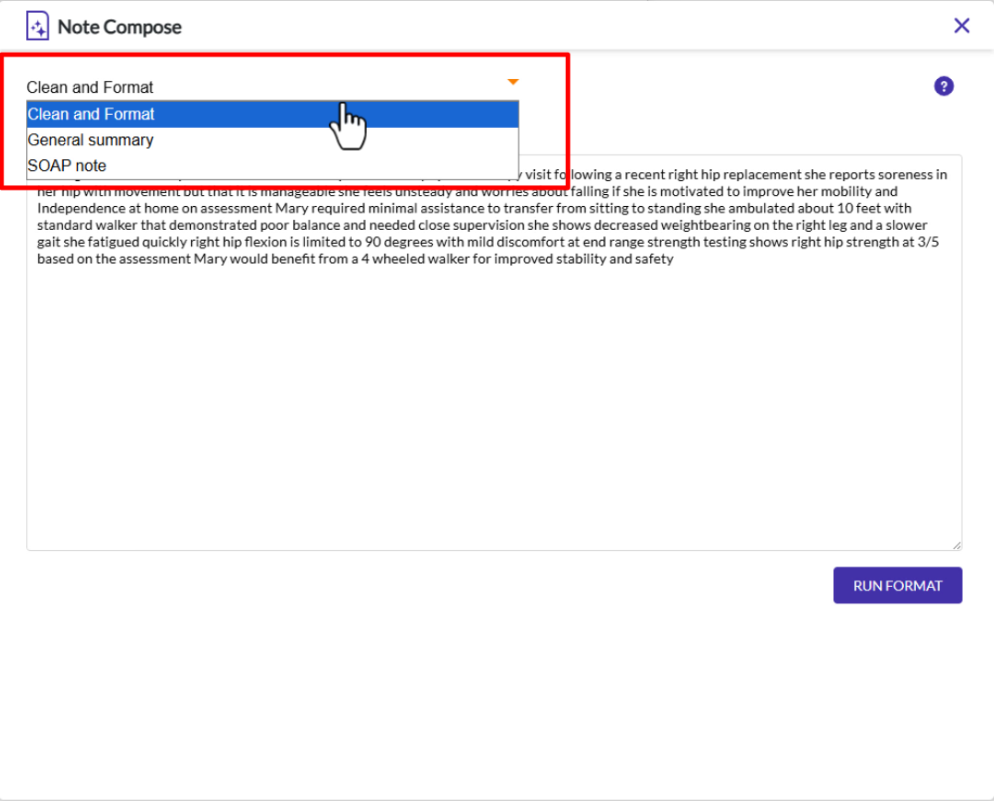
- By default the first time you run Note Compose the "Clean and Format" is selected on the menu at the top.
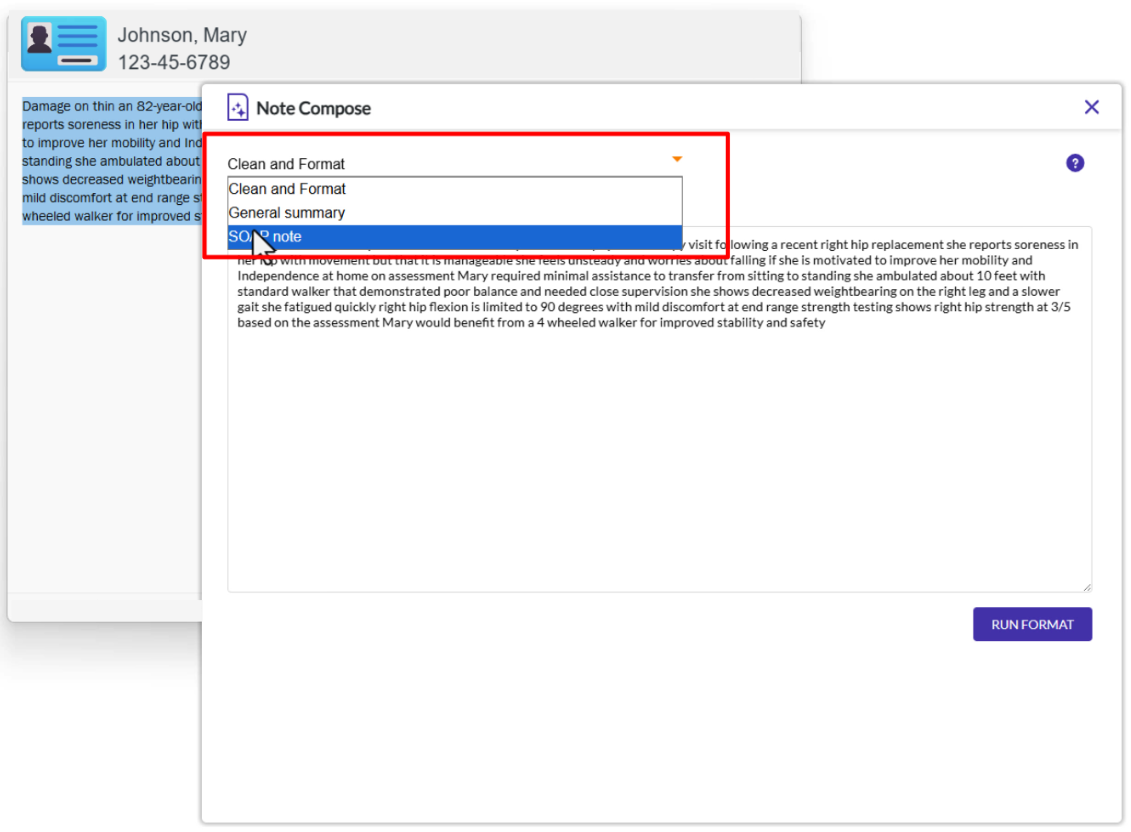
- Change the selection in the drop-down menu to SOAP Note (or any other formatting option that may be available to you).
- Voice checks every 30 minutes for any new or updated formatting options for the menu.
- Voice checks every 30 minutes for any new or updated formatting options for the menu.
- The formatting operation runs automatically when you change the menu.
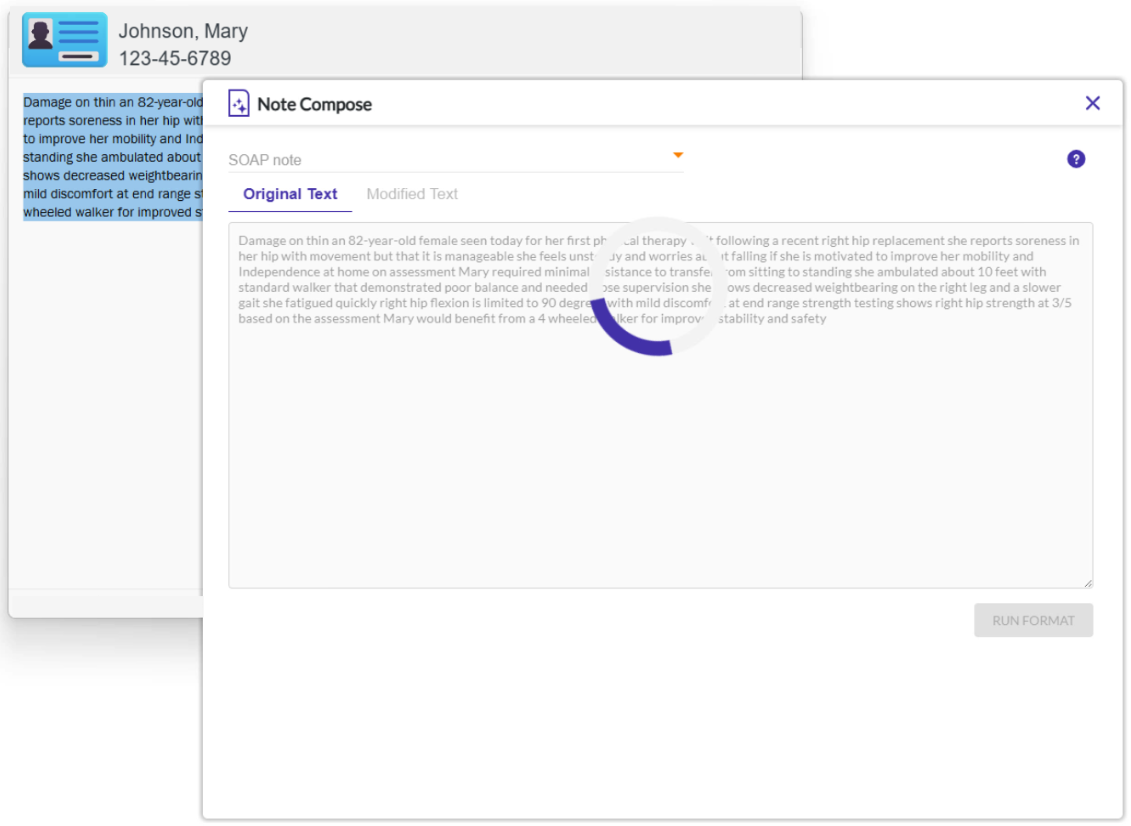
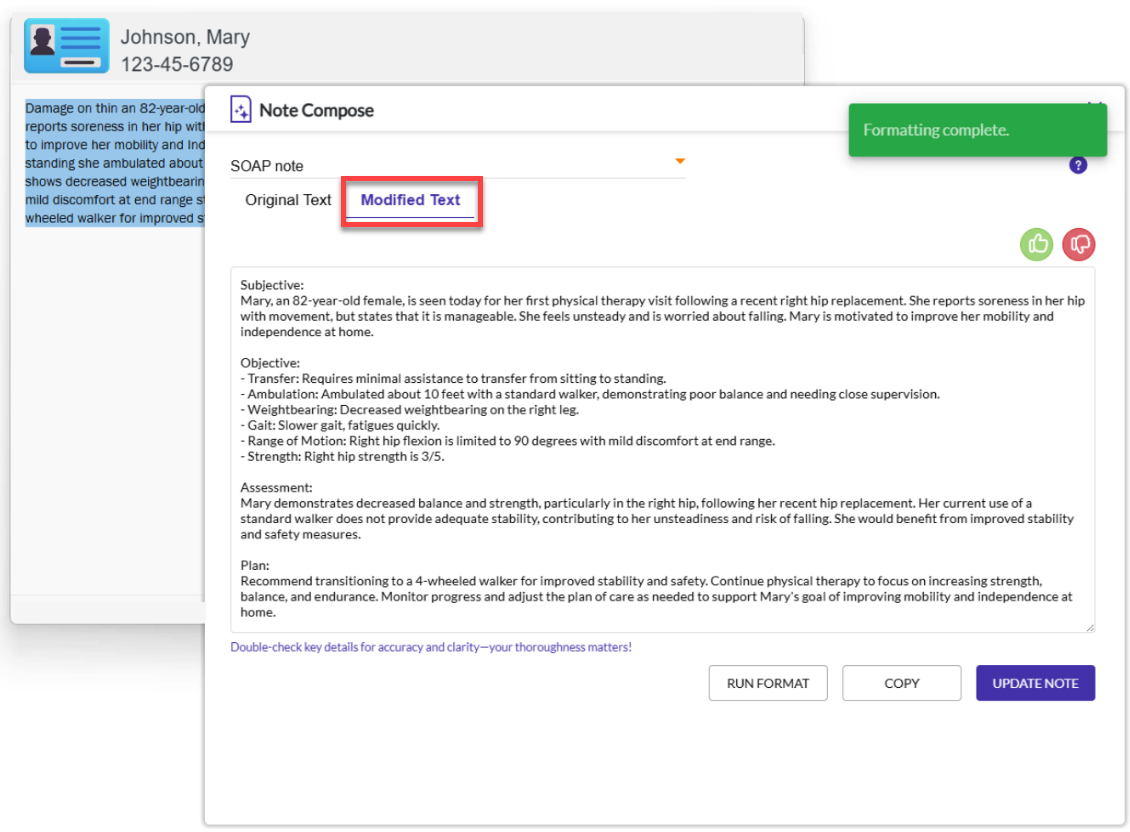
- When formatting is complete the tab automatically switches to Modified Text, and the transcript now includes punctuation and, in this case, information has been condensed and put in a SOAP note format. Extraneous information that does not directly support a SOAP note may be REMOVED in this step.
- If you need to make additional changes you can do so by dictating or typing, then click the RUN FORMAT button to apply formatting.
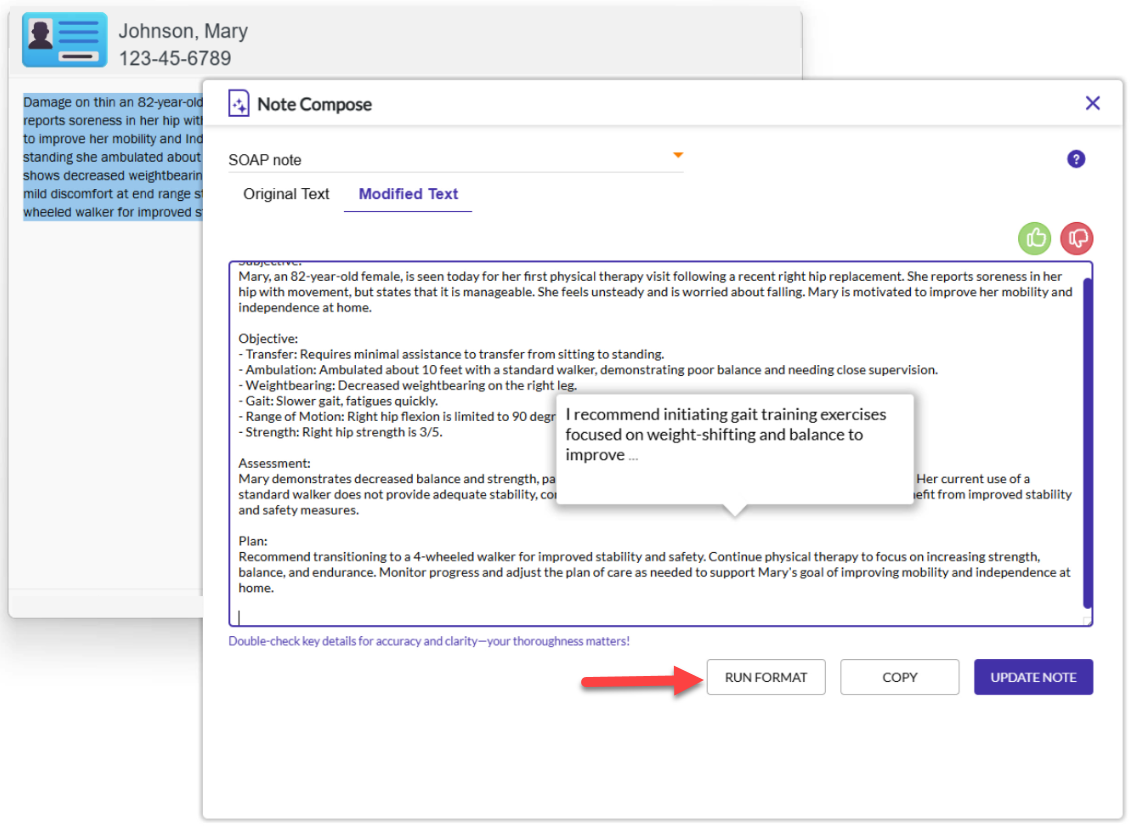
- Use the F2 key on your keyboard to dictate directly into Note Compose window on the Original Text or Modified Text tabs.
- You can also type into these fields.
- Optionally, use Note Assist to check your note for required information.
- Place your cursor into the text area on the Modified Text tab and press the Note Assist hotkey (which is the back quote (`) key by default). For more information see Voice: Use Note Assist.
- Place your cursor into the text area on the Modified Text tab and press the Note Assist hotkey (which is the back quote (`) key by default). For more information see Voice: Use Note Assist.
- REVIEW AND VALIDATE THE NOTE before pasting it back into your application to make sure all of the information is correct.
Optionally click the thumbs-up or thumbs-down button to submit feedback to nVoq about the formatting that was applied to your transcript. Feedback may help improve future returns.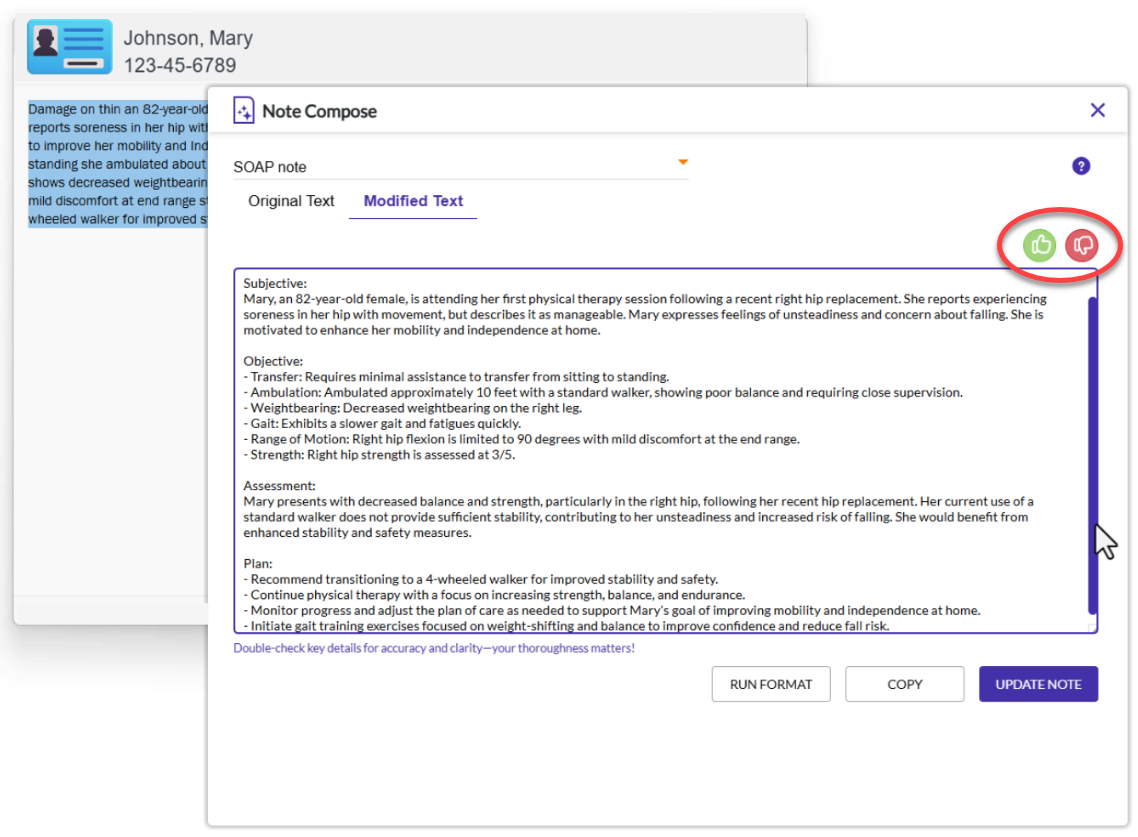
- If you want to manually paste your transcript into an application (or paste it into multiple applications), click the COPY button to copy the transcript from the Modified Text tab to your computer's clipboard. The Note Compose window stays open.
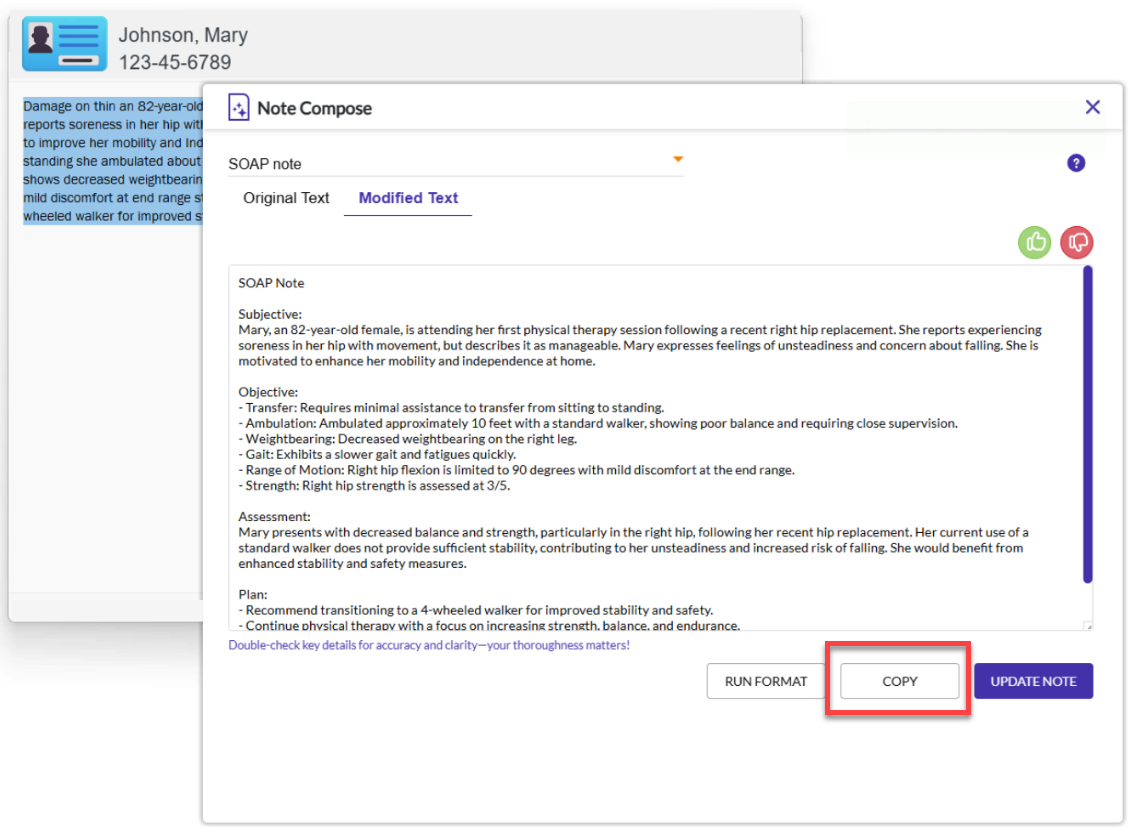
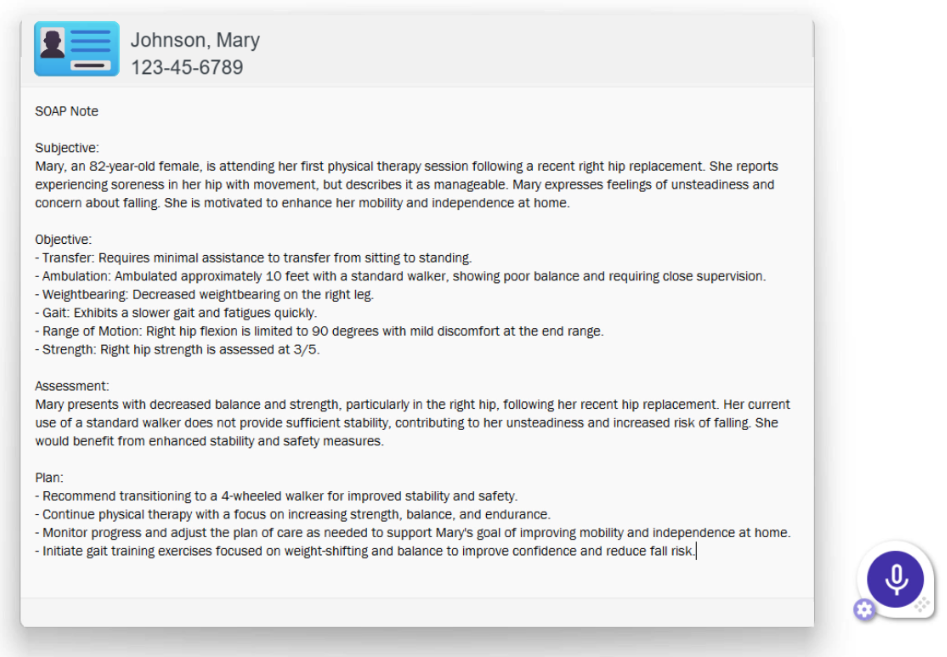
- Click the UPDATE NOTE button to replace all of the text in the original field of your application with your formatted transcript.
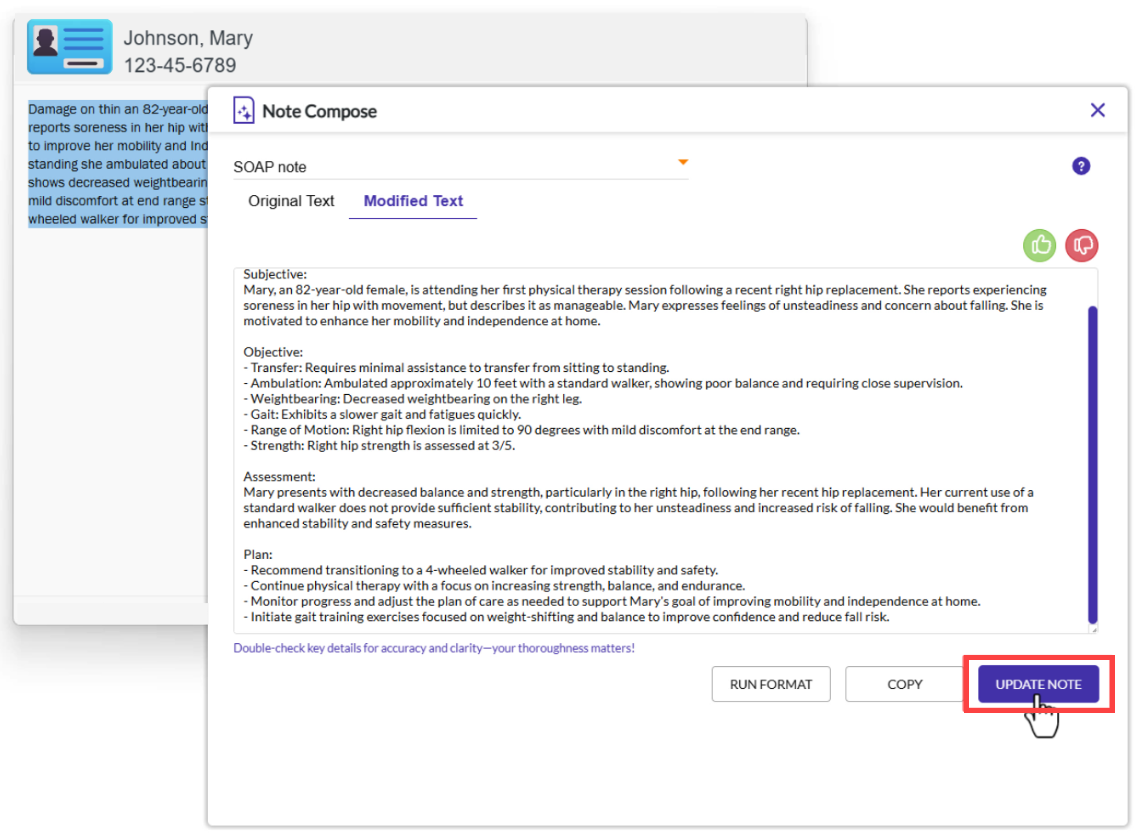
- The Note Compose window closes automatically after you click the UPDATE NOTE button.
Known Issues
- The formatted SOAP note is not available in nVoq Administrator Review & Correct.
- Voice will display a message stating, "Request timed out. Please try submitting a smaller request." if it is not able to process the amount of text submitted for formatting. The amount of text that can be submitted for formatting is approximately 12,000 words, however this number is also dependent on server workload at the time of formatting.
The Note Compose Window
When SOAP Note is selected on the top menu, the Note Compose window has two tabs: Original Text and Modified Text.
Menu
The drop-down menu at the top of the window includes the different note formatting options available to you, such as Clean and Format and SOAP Note.
Original Text
This tab is where the original dictated or typed transcript appears when you tap F9 to open the Note Compose window. It includes a sizing handle and one button: RUN FORMAT.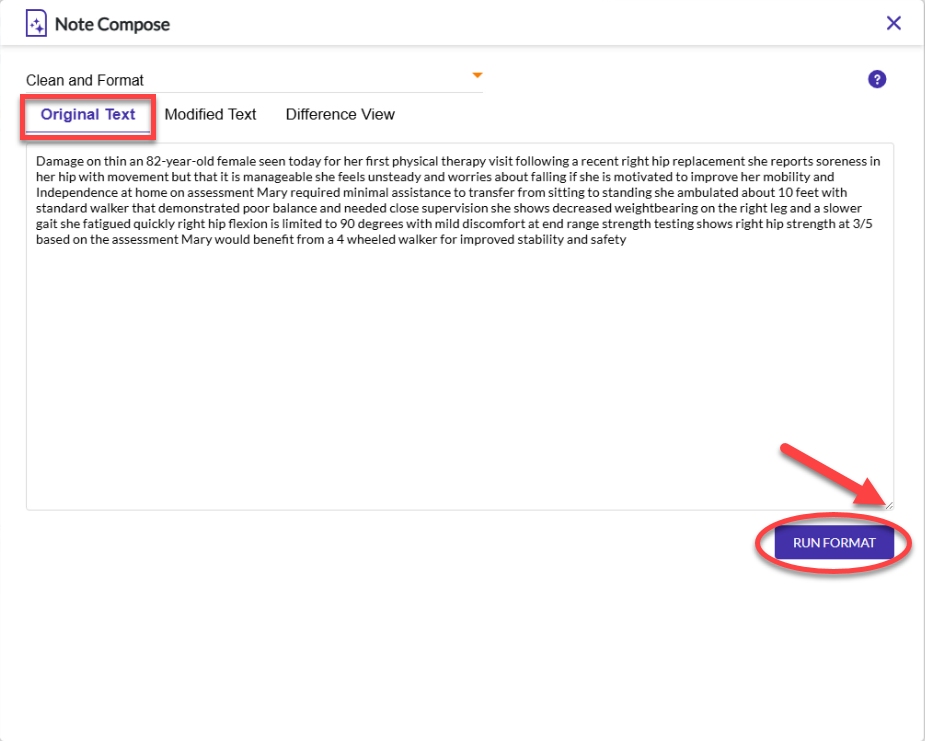
Sizing Handle
Drag the two diagonal lines in the lower-right corner of the text area to resize the text area so you can see more of the transcript, if necessary. You can resize the whole window by dragging an edge.
Run Format Button
The Run Format button starts the process of applying punctuation and SOAP note formatting to the original text. Once formatting has been applied, the Note Compose window automatically switches the display to the Modified Text tab.
Modified Text
The text area on the Modified Text tab is blank until the formatting operation has run. Once that happens, the original transcript with punctuation and SOAP note formatting applied appears on this tab. This tab includes thumbs-up and thumbs-down buttons which can be used to submit feedback. There is also a sizing handle and three buttons at the bottom: RUN FORMAT, COPY, and UPDATE NOTE.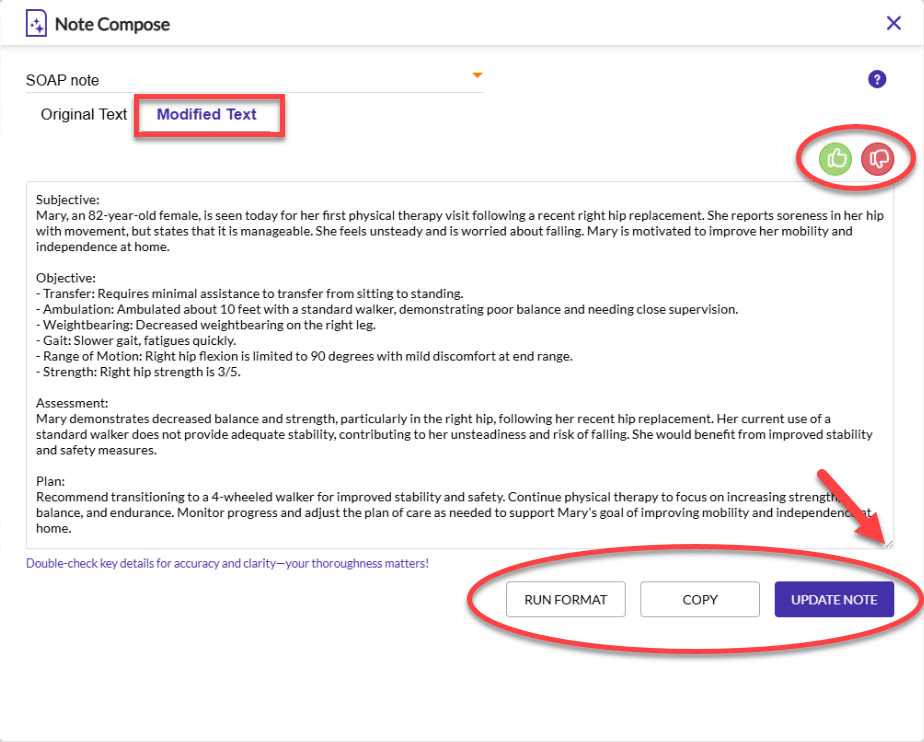
Thumbs-Up Button
Click the green thumbs-up button to submit feedback to nVoq when proper formatting and structure is applied to your transcript. When you click this button you have the option of selecting from a few pre-defined options. Select as many of these options as you want, and/or enter your own observations in the text area. When you're ready to submit feedback, click the Submit Feedback button. Feedback may be referenced to help improve future returns. (The thumbs-up button is disabled if there is no text in the Modified Text area.)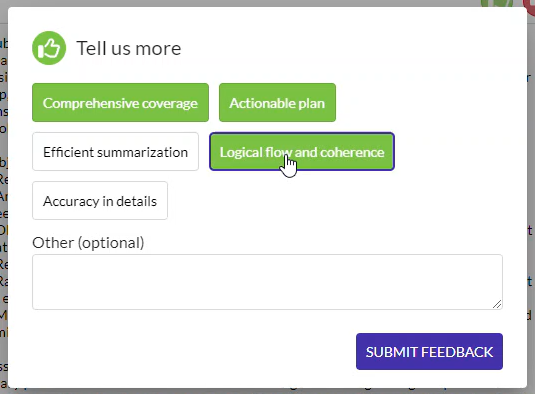
Thumbs-Down Button
Click the red thumbs-down button to submit feedback to nVoq when mistakes are made in your structured note. When you click this button you have the option of selecting from a few pre-defined options. Select as many of these options as you want, and/or enter your own observations in the text area. When you're ready to submit feedback, click the Submit Feedback button. Feedback may be referenced to help improve future returns. (The thumbs-down button is disabled if there is no text in the Modified Text area.)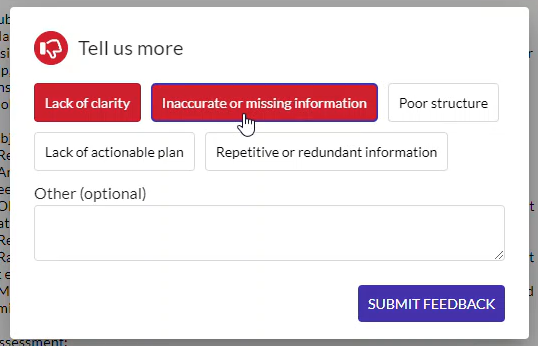
Sizing Handle
Drag the two diagonal lines in the lower-right corner of the text area to resize the text area so you can see more of the transcript, if necessary. You can resize the whole window by dragging an edge.
Run Format Button
This button re-applies formatting and punctuation to text on the Modified Text tab. This allows you to make changes to the text on this tab as much as you want and add punctuation and formatting when you're done.
Copy Button
This button copies text from the Modified Text tab (including any changes you made to the text here) and puts it on your computer's clipboard. The Note Compose window remains open after this button is clicked.
Update Note Button
This button copies the text from the Modified Text tab (including any changes you made to text here) and pastes it back into the text field in your application. Any text that was in the field in your application is replaced by the text on the Modified Text tab. The Note Compose window closes automatically after this button is clicked.