Depending on the version of Note Compose available to you, it may also be able to structure your note for a specific purpose, such as a SOAP note. In addition to adding punctuation, it can extract key details, condense information from a transcript, and organize the content into the selected note format.
You must be signed in to use this feature. Tap Sign in to Voice to sign in.

Use Note Compose for Structured Notes
The example below shows how to run SOAP Note formatting, but you may have other formatting options to choose from.
Your administrator may have configured custom Note Compose formatting options for you, and they will also be listed in the same menu. You run them the same way as shown below for SOAP Note.
- Dictate your notes the way you would say them naturally, no need to say punctuation.
- You do not have to dictate in the order of a SOAP note.
- You can also type text.
- Keep your character count below 6,000 (that's about 1,050 words) to avoid getting an error message when you run formatting.
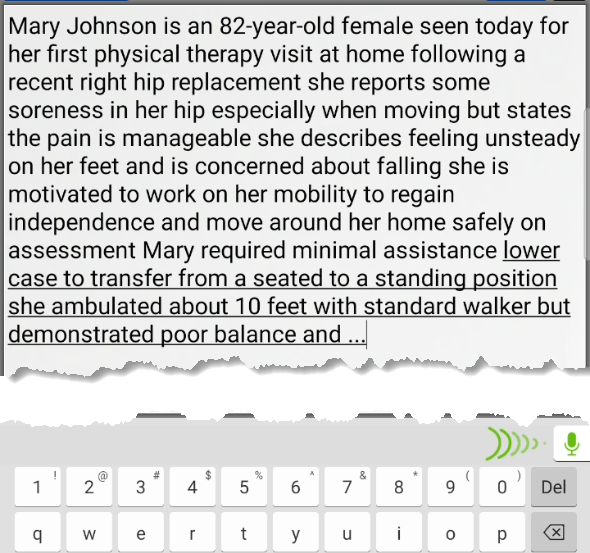
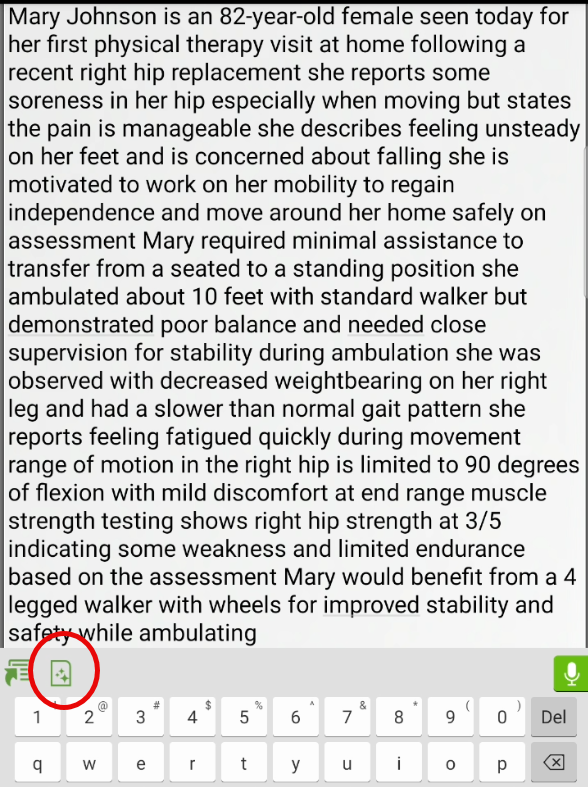
- After you have ended your dictation recording (or typing), tap the Note Compose button on the keyboard.
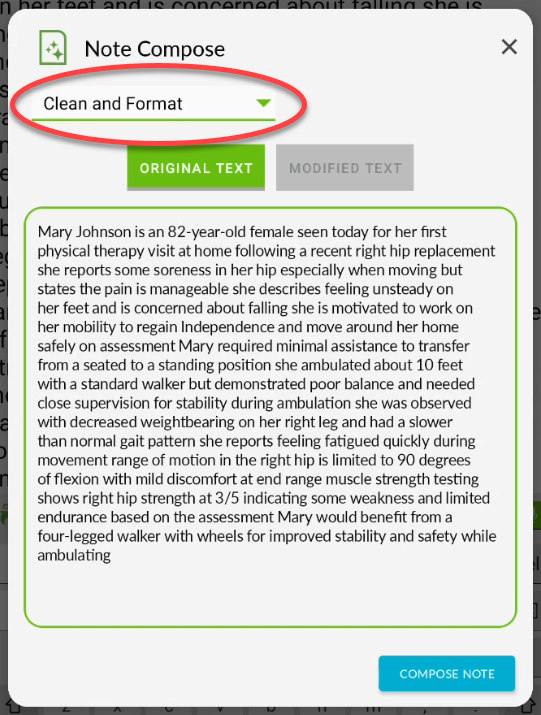
- The first time you run Note Compose the "Clean and Format" option is selected by default on the menu at the top of the window. The window also includes all of the text that was in the text area, which may be more than just your last dictation.
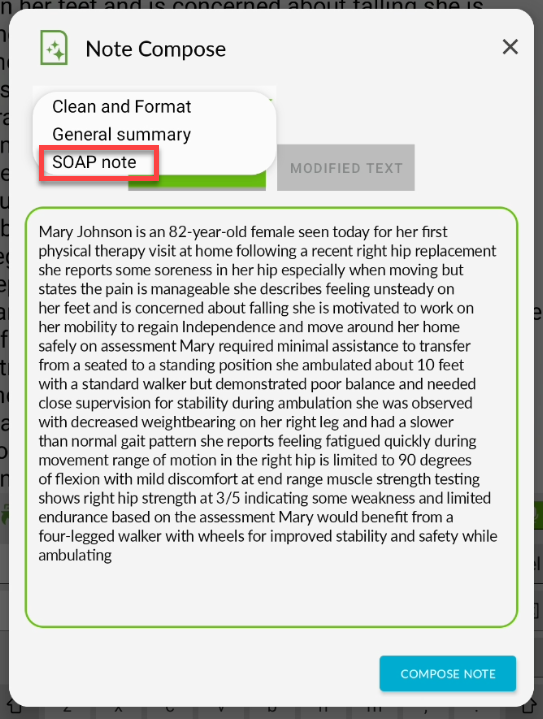
- Tap the menu and select SOAP Note (or any other formatting option that may be available to you).Your Note Compose window may not have a menu.This menu is only available if your agency has purchased the structured note version of Note Compose for you. If no menu is visible, Note Compose automatically uses the "Clean and Format" option. For more information on using that, see Voice for Android: Note Compose.
- Voice checks every 30 minutes for any new or updated formatting options for the menu.
- Voice checks every 30 minutes for any new or updated formatting options for the menu.
- After you have changed the menu option, tap the COMPOSE NOTE button. When running SOAP Note formatting Note Compose will extract key details and format the text into a SOAP note.
Note that if there is extraneous information that does not directly support a SOAP note, it will be REMOVED from the note in this step.An error message displays if your note contains too many characters.An error message stating, "Dictation is too long for formatting. Please shorten and try again." displays if your note includes 6,000 characters or more. Your note will remain on the Original Text tab so you can shorten it and run formatting again.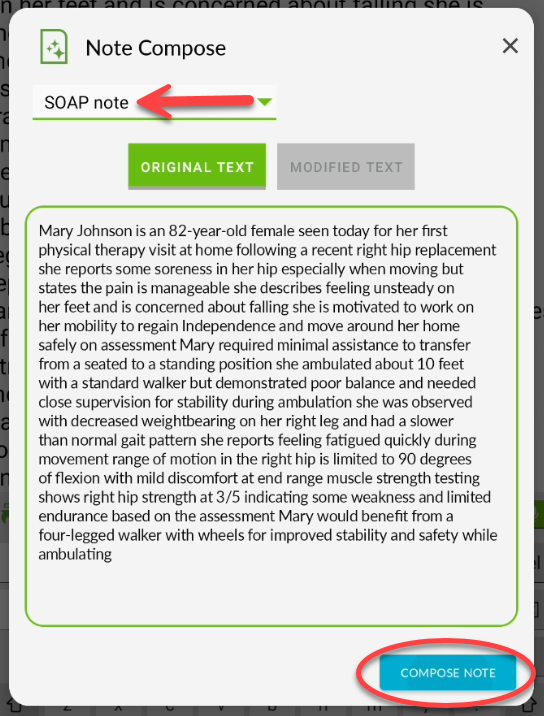
- When complete, the formatted and structured note automatically appears in the Modified Text tab. Be sure to REVIEW your formatted note. Remember that YOU are responsible for the accuracy of your documentation!
If it is accurate, tap the UPDATE NOTE button to replace the note in your application with the new version.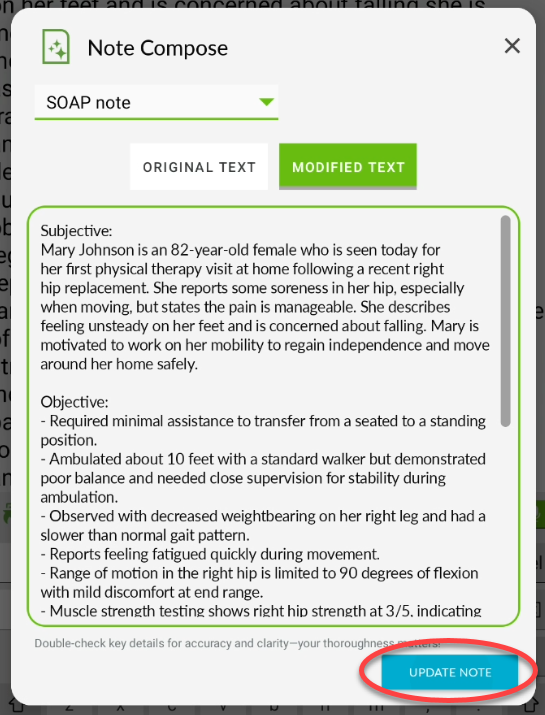
- All of the original text in your application text area is updated.
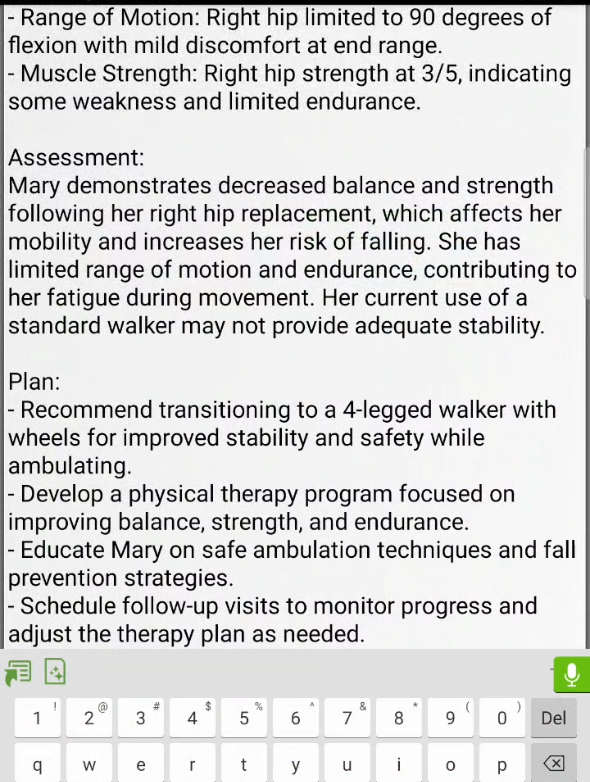
The next time you run Note Compose window it will automatically display last formatting option you used.
In this case, SOAP Note will automatically be selected the next time you tap the Note Compose button.
Known Issues
- Note Compose does not paste into Microsoft Word. After running Note Compose the keyboard disappears and nothing pastes into the Word document.
- The formatted SOAP note (or any other custom formatting) is not available in nVoq Administrator Review & Correct.